## What is Data Binding?
Interfaces display data from Pipedrive resources -- deals, persons, organizations, and more. Instead of typing fixed text, you bind a block's text input to a field through the **Data Picker**, and the field's current value is rendered at run time.
The Data Picker inserts each field as a small **blue tag** into the editor. The compiled syntax behind the tag is `{{resource.field}}` (for example `{{deal.title}}`), but in the builder you do not type that syntax yourself -- you click the tag you want and the editor renders it as a tag.
## Opening the Data Picker
1. Select a block on the canvas (for example, a Title or Paragraph block).
2. In the Block Settings panel, find a **Data Picker-enabled input**: Title's **Text** field, Paragraph's **Value** field, and similar fields on other blocks.
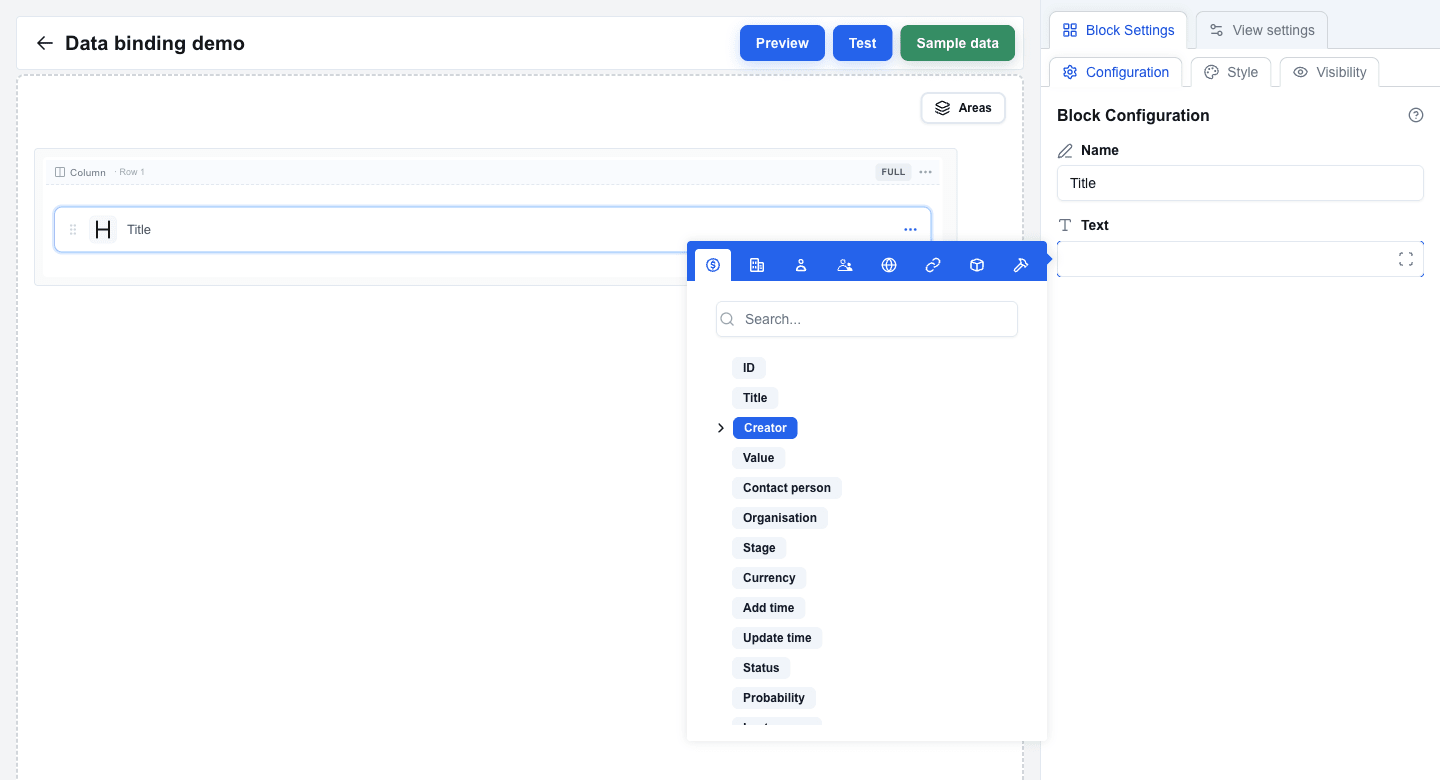
3. Click inside the input. A **Data Picker tooltip** appears next to the field.
4. The tooltip's top bar contains an icon-only row of tabs:
- **Deal** -- deal fields (title, value, currency, owner, ...)
- **Organization** -- organization fields (name, address, ...)
- **Person** -- person fields (name, email, phone, ...)
- **User** -- the current logged-in user
- **Custom** -- the JSON payload returned by your view's API endpoint or your saved Sample data
- **Search Params** -- URL parameters passed in from another view
- **Variable** -- interface-level variables you define in the Variables tab
- **Functions** -- built-in helper functions
 ## Browsing Available Data
1. Click a tab to see the fields for that resource.
2. Simple fields (such as `title` or `value`) can be clicked directly to insert them as a tag.
3. Nested fields are expandable. For example, the deal's owner is an object -- expand it to pick `owner_id.name`.
4. The Data Picker remembers which tab you last opened.
## Binding a Deal Title to a Title Block
1. Add a **Title** block to your canvas (or select an existing one).
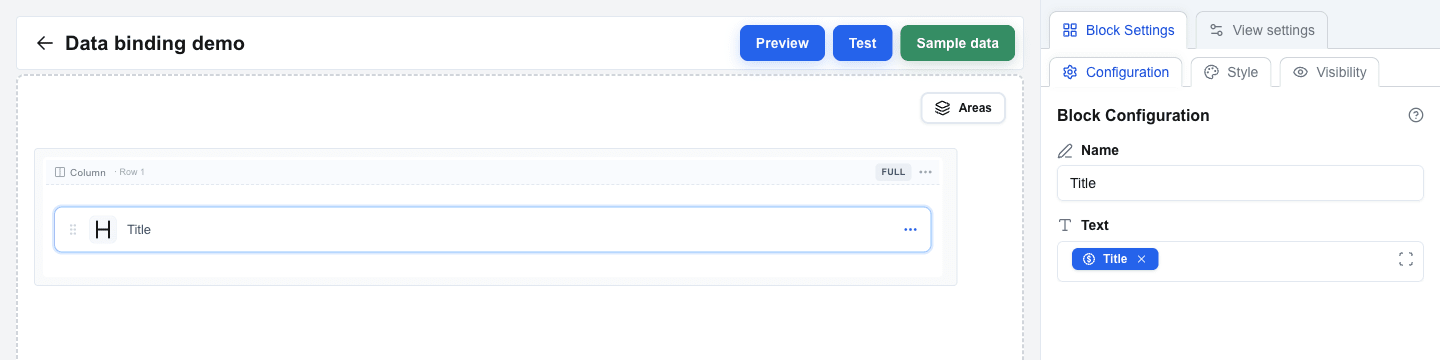
2. In Block Settings, click the **Text** field. The Data Picker opens.
3. Select the **Deal** tab.
4. Click on **Title**.
5. A blue **Title** tag is inserted into the Text field. The compiled value is `{{deal.title}}`, but you don't see the curly-brace syntax -- you see the tag.
 ## Combining Static Text and Dynamic Data
You can mix typed text with multiple tags in a single field.
1. Add a **Paragraph** block and select it.
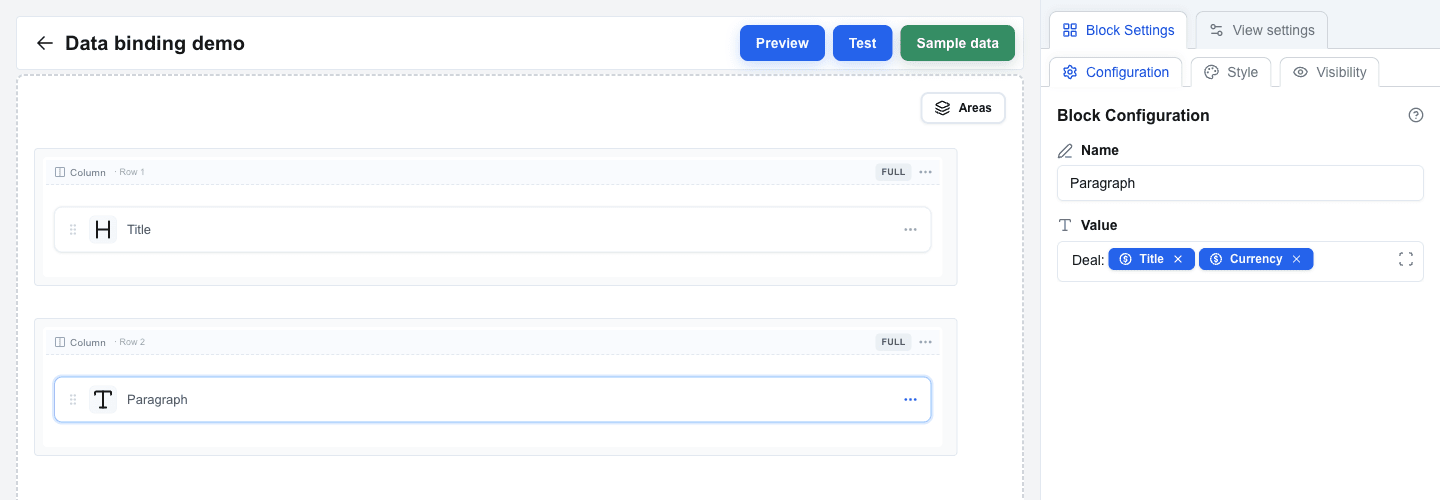
2. In the **Value** field, type: `Deal: `
3. Open the Data Picker and insert the deal **Title** tag.
4. Insert the deal **Currency** tag right after it (or with a space between them).
The editor now shows: `Deal:` followed by a Title tag and a Currency tag. The compiled output is `Deal: {{deal.title}} {{deal.currency}}`.
This technique works in any Data Picker-enabled field across all block types.
 ## Testing with Real Data
1. Click **Preview** in the top bar to switch to Preview mode.
2. In the Preview top bar, next to the **Preview** title, there is a **Pipedrive resource** button labelled with the active resource (for example `Deal #1995`). Click it to open the **Pipedrive resource** dialog and pick a different deal, person, or organization from your account.
3. The system fetches the real data for the selected resource and replaces every Data Picker tag with the actual value.
4. Your Title and Paragraph blocks render with live Pipedrive data.
If a tag references a resource that is not present (for example a person tag when no person is linked), the rendered value may be empty.
 ## Understanding Data Types
The Data Picker organises fields by data type:
- **String** -- text values such as names, titles, emails.
- **Number** -- numeric values such as deal amounts and phone numbers.
- **Object** -- nested structures (for example `deal.owner_id` containing `name`, `email`, ...). Expand the object to pick a sub-field; the resulting tag follows the path.
- **Array** -- lists of items (for example deal products). Arrays are used by blocks that iterate, such as the Table block (covered in a later tutorial).
When you pick a sub-field of an object, the Data Picker creates a tag that renders the dotted path (for example `owner_id.name`).
## Summary
In this tutorial you learned to:
- Bind block fields by inserting Data Picker tags instead of typing placeholder syntax
- Browse the eight Data Picker tabs (Deal, Organization, Person, User, Custom, Search Params, Variable, Functions)
- Mix static text and multiple tags in a single field
- Preview your interface with a chosen Pipedrive resource via the Preview top-bar dialog
- Work with nested object fields by expanding them in the Data Picker