
Button transfer
Obtain a OneClick API key
First you need to create and obtain a OneClick API key from the target OneClick instance to which you want to copy the button to.
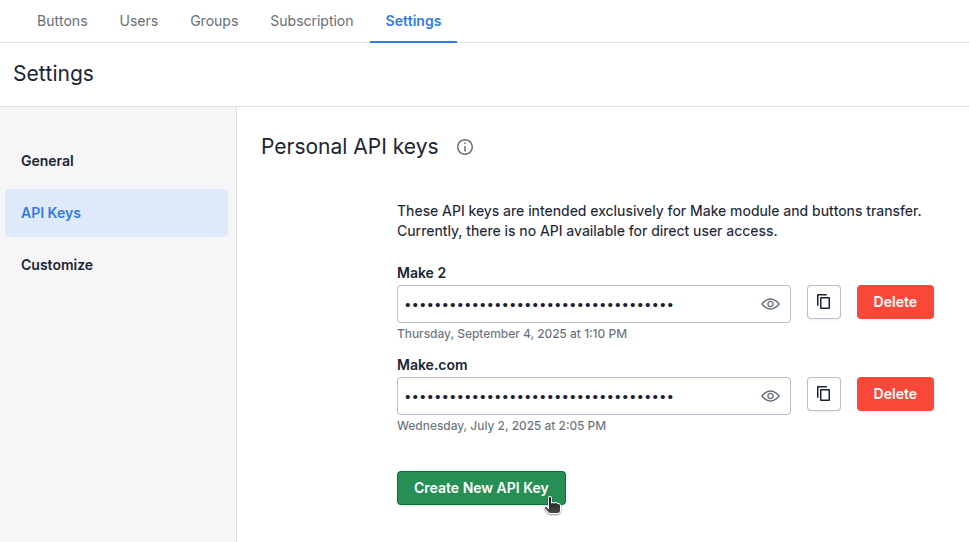
Head to OneClick settings, go to the Settings tab and choose API Keys from the left menu. Click on "Create New API Key":
Name the key you are about to create and select the toggle "Allow button transfers from other organizations":
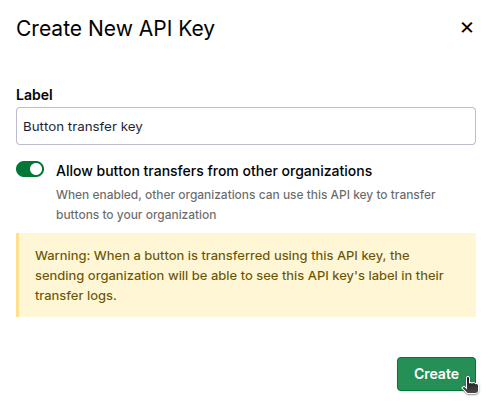
When the key has been created click on the copy icon next to the key:

Transfer your button
Once you have an API key head to the source OneClick instance and open OneClick settings. Go and edit your button and chose "Transfer" from the left menu.
Paste your API key in the field "Target Organization API Key":
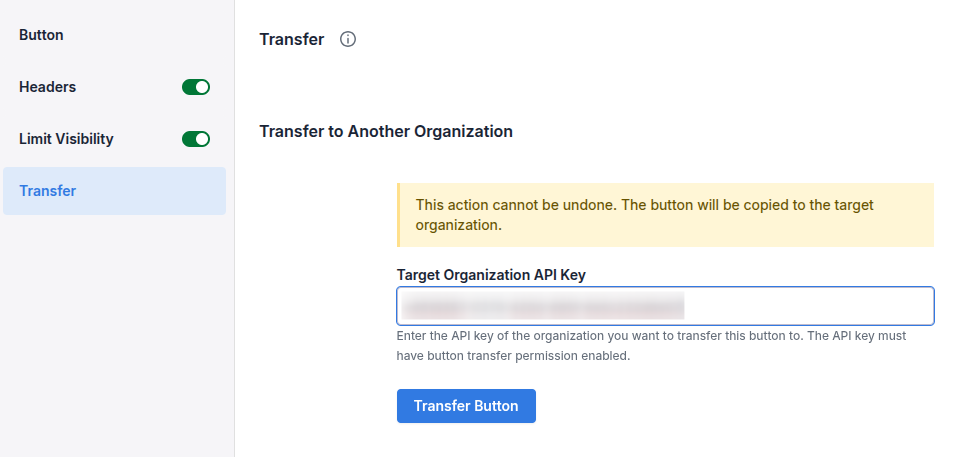
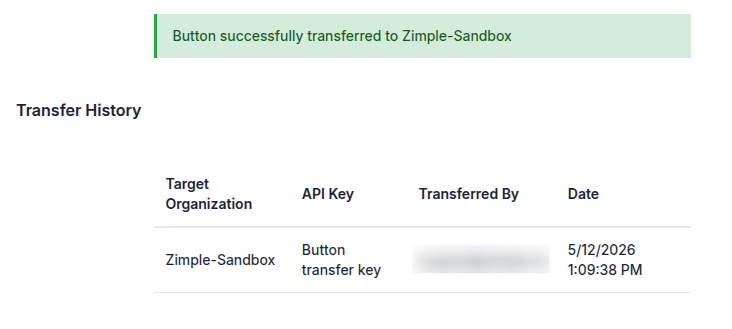
Click on "Transfer Button". When the transfer is complete you can see it in the transfer history in the Transfer view:
Verify result
Head back to the target Pipedrive instance and you can now see the transferred button as the last button in the list.
Please note that if the button is utilizing any Custom Pipedrive fields you need to re-map then in the target instance's button configuration