
Release 2026-09-21
New features
Floating window buttons
A new way of triggering buttons: Buttons can now appear on a floating window inside Pipedrive. This is convient for processes that are not linked to specific Pipedrive items. You can trigger for example batch processes or generic actions that are not Pipedrive context related.
Creating Floating window buttons
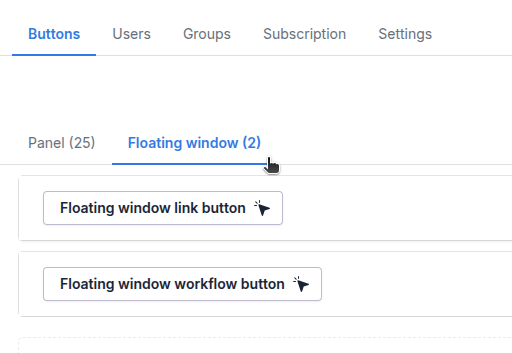
From here you can create Floating window buttons the same way as before, click on Create new and select your button type:
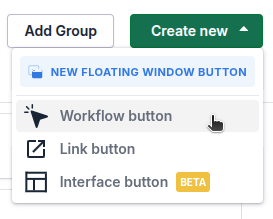
Floating window and Panel buttons are only visible in their own places, Panel buttons cannot be triggered from the Floating window or Floating window buttons from Panel.
Using Floating window
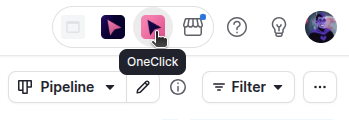
To access the Floating window click on the OneClick icon in the top right corner:
Floating window opens and the buttons appear. You can keep the floating window open while navigating in Pipedrive, or close it when needed.
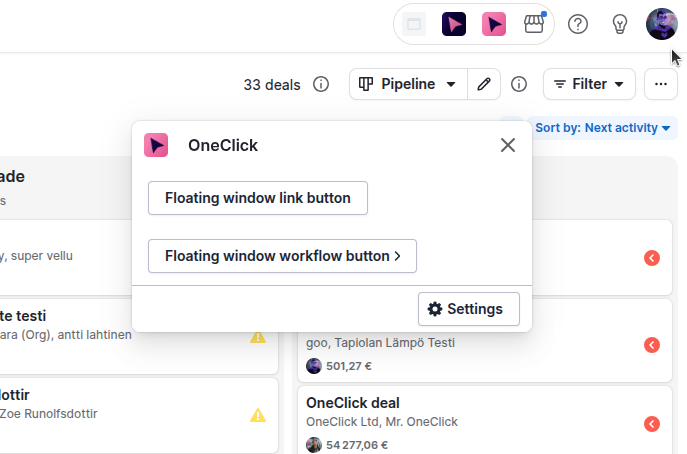
After making changes to your floating window buttons please refresh your browser tab for the changes to be effective!
Limitations
Floating window buttons are not Pipedrive context aware
The floating window is not aware of the context that it is in due to Pipedrive's limitations. This means that for example deal, organisation or person fields cannot be used with Floating window buttons.
Please read the next section for more information how to utilize Floating window buttons and Pipedrive data.
Select filter disposable fields
A new disposable field type has been introduced: Filter selection.
This allows users to select specific filter(s) from Pipedrive. This is especially convenient with Floating window buttons, as it enables batch processes that have not been possible before.
Filter fields are not limited to only Floating window buttons, you can use them with Panel buttons as well.
To add a filter disposable field, go to your button settings and head enable the Custom fields tab. Click on Add new data field and select Disposable. Under the Field type selector select Filter:
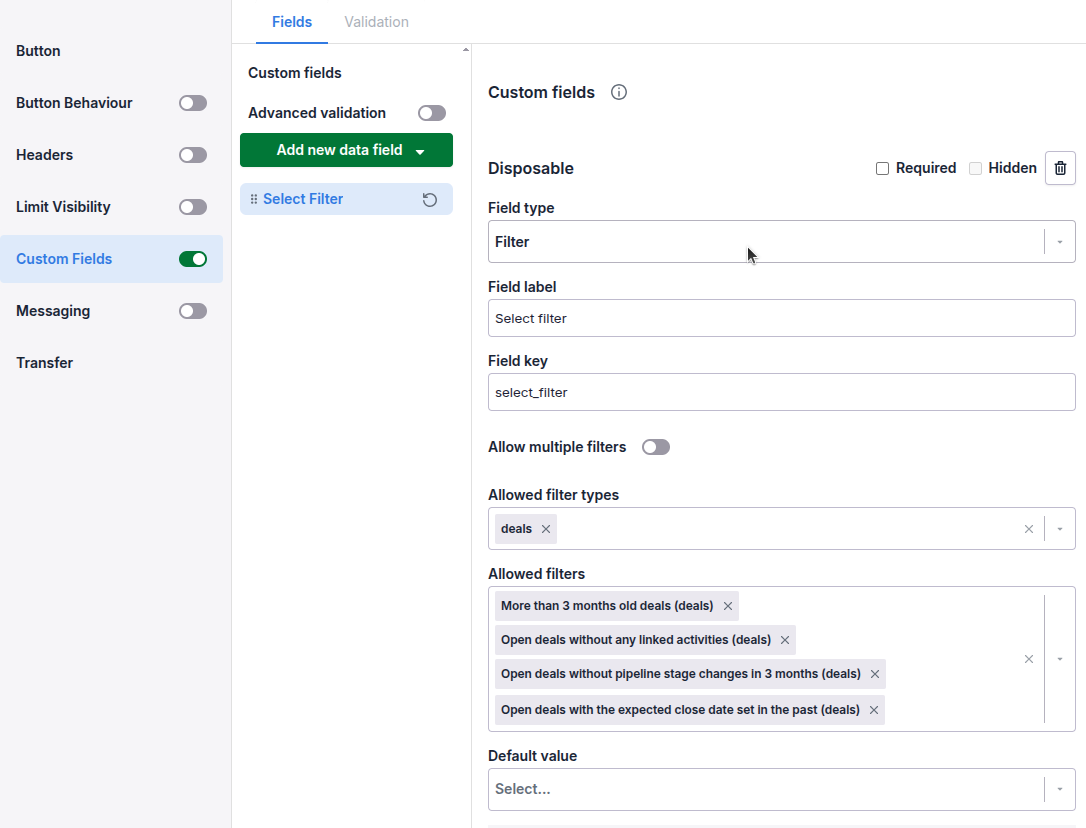
Name you field in the Field label input, and give it a unique key in the Field key input.
Allow multiple filters
If needed, you can enable users to select multiple filters at once
Allowed filter types
You can limit the the filter selection list by Pipedrive item types: deal, organisation or person filters
Allowed filters
You can predefine which filters can be selected to exclude unwanted filter selections
Default value
You can default the filter selection to a desired option
Button payload
{
  "disposable": {
    "select_filter": {
      "default_value": null,
      "field_key": "select_filter",
      "field_label_value": "More than 3 months old deals, Open deals without pipeline stage changes in 3 months",
      "field_name": "Select filter",
      "field_type": "filter",
      "field_value": [
        {
          "name": "More than 3 months old deals",
          "key": 6,
          "type": "deals"
        },
        {
          "name": "Open deals without pipeline stage changes in 3 months",
          "key": 92,
          "type": "deals"
        }
      ],
      "is_hidden": false,
      "is_multiple_users_allowed": false,
      "is_required": false,
      "is_not_allowed": false,
      "custom_error_message": "Field must be empty"
    }
  }
}