Sidebar
The sidebar is the panel on the right side of the builder. It is always visible while you edit a view. Its contents change based on what you currently have selected on the canvas – it is where every setting lives.
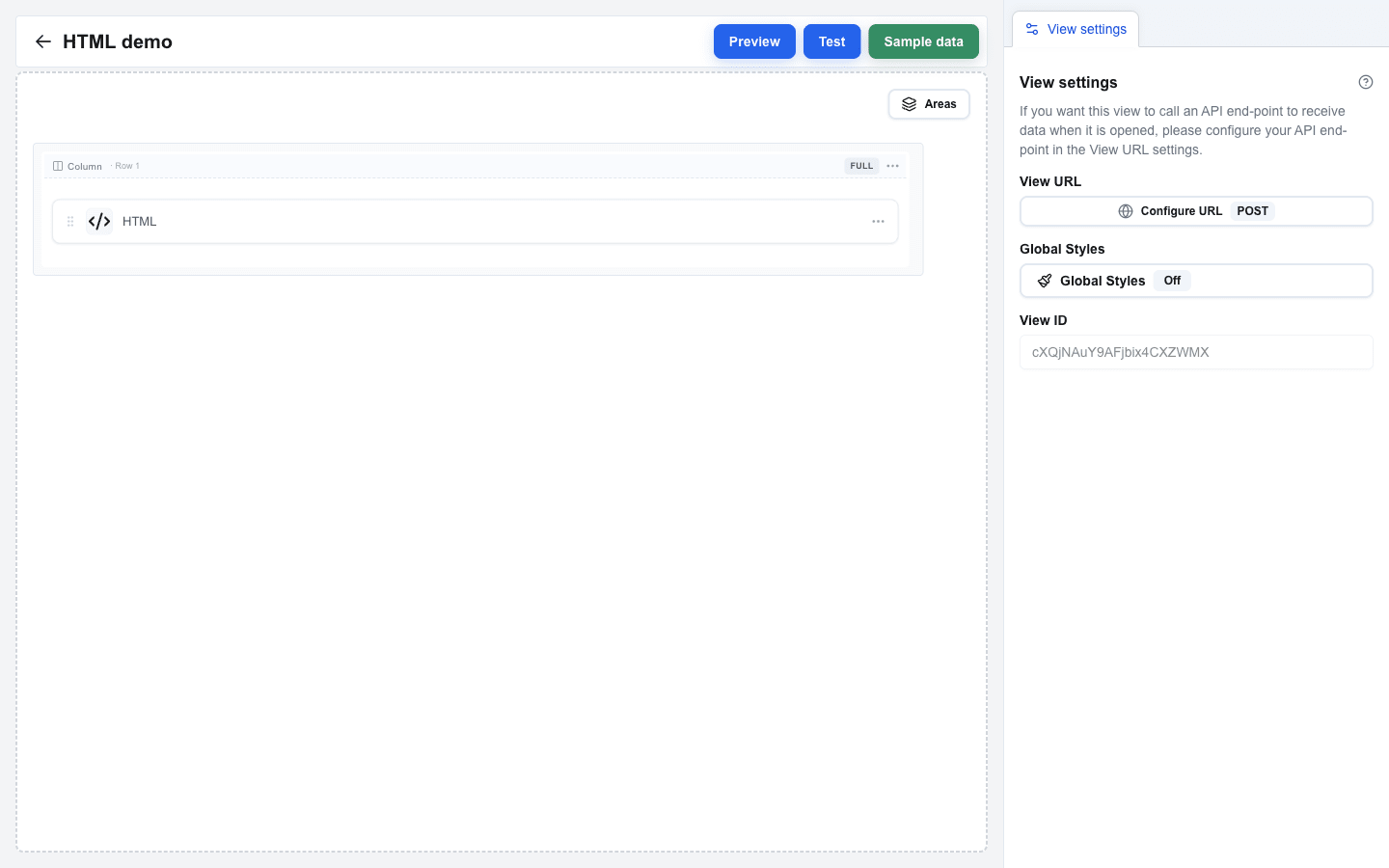
What the Sidebar Shows
Section titled “What the Sidebar Shows”The sidebar always has a View settings tab. A second tab joins it when you click something on the canvas – together they appear side by side at the top of the sidebar.
| Second tab | Appears when |
|---|---|
| Block Settings | A block is selected. Has its own sub-tabs: Configuration, Style, Visibility. |
| Column Settings | A column-indicator label (the small “Col 1”, “Col 2”, “Full”, etc. label above each column) is clicked. |
| Row Settings | A row’s column-header on the canvas is clicked, or Settings is picked from the row’s “…” menu. |
| Form Settings | A Form Start or Form End row is selected. |
| Area Settings | An area’s coloured badge (the floating chip with the area name above the area’s first row) is clicked. |
For the full list of fields each tab exposes, see the Settings Panel reference.