Buttons
This page is for admins who make Buttons.
A Button is an action that you configure in OneClick. A Pipedrive user presses it in the Panel or in the Floating window. For the view of the user, see Use Buttons.
Select the Button type
Section titled “Select the Button type”OneClick has three Button types.
| Button type | What a press does | Use it when |
|---|---|---|
| Workflow button | Sends the data of the Pipedrive record to a URL. | A process must start, for example a Make scenario, a Zap or your own server. |
| Link button | Opens a URL that OneClick builds from Pipedrive field values. | The user must go to a page, for example a form, a registry or an invoice tool. |
| Interface button | Opens an Interface view that you build in Interface Builder. | The user must see data or fill in a form in a screen inside Pipedrive. |
Some questions help you to select:
- Must the press start a process in another system? Use a Workflow button. A Workflow button can also show fields before it sends the data, and it can show messages from the process.
- Must the user only open a page in a browser tab or a pop-up window? Use a Link button.
- Must the user work in a screen with tables, forms or other blocks? Use an Interface button.
In the Settings, the Create new menu shows the Interface button with the label BETA.
Select the place: the Panel or the Floating window
Section titled “Select the place: the Panel or the Floating window”A Button is in one of two places. You select the place when you make the Button.
| Place | Where the user finds it | Data of a Pipedrive record |
|---|---|---|
| Panel | In the sidebar of a deal, a person or an organization. | Yes: the open record. |
| Floating window | In a window over Pipedrive. The user opens it with the OneClick icon in the top bar. | No. |
A Panel Button belongs to the record that the user has open. When the user presses it, OneClick uses the data of that deal, person or organization.
The Floating window stays open when the user goes to another page in Pipedrive. Thus it cannot belong to a record. Use it for actions that do not apply to one record, for example a batch process or a general action.
The Panel and the Floating window have different Buttons. A user cannot press a Panel Button in the Floating window, or a Floating window Button in the Panel.
A Floating window Button gets no Pipedrive record
Section titled “A Floating window Button gets no Pipedrive record”A Floating window Button gets no data from a deal, a person or an organization. Do not make a Floating window Button for an action that needs the data of a record.
OneClick removes the settings that need a record from a Floating window Button:
- Workflow button. The fields can only be fields that the user fills in, and headers, labels and dividers. Deal, person and organization fields are not available. The editor has no Products section and no Interface section.
- Link button. The URL can only contain text and values of the user who presses the Button.
- Interface button. The Interface views get no deal, person or organization data. They can show data from your own data source and the data of the user.
- Limit visibility. You can limit the Button only by users and groups. See Limit visibility.
If you save a Floating window Button with a setting that needs a record, OneClick shows an error, for example Floating window buttons can only use disposable fields and UI elements.
Make a Button
Section titled “Make a Button”- Open a deal, a person or an organization in Pipedrive.
- Click Settings at the bottom of the OneClick Panel. The Settings open on the Buttons tab.
- Click the Panel tab or the Floating window tab. The number after the name is the number of Buttons in that place.
- Click Create new. The menu shows the place of the new Button, for example NEW FLOATING WINDOW BUTTON.
- Click Workflow button, Link button or Interface button. The Button editor opens.
- Set the Button. The pages of each Button type tell you how.
- Click Save.
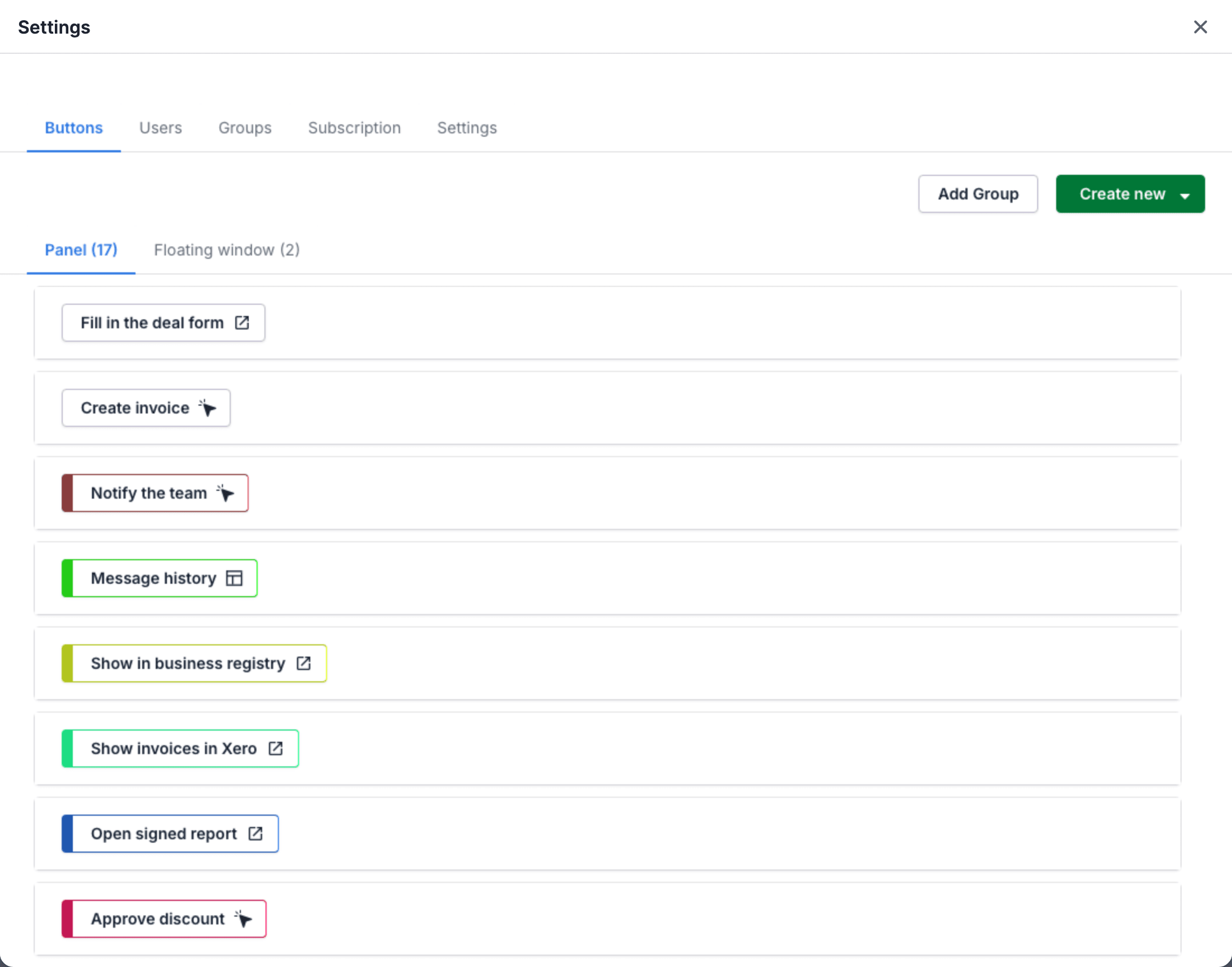
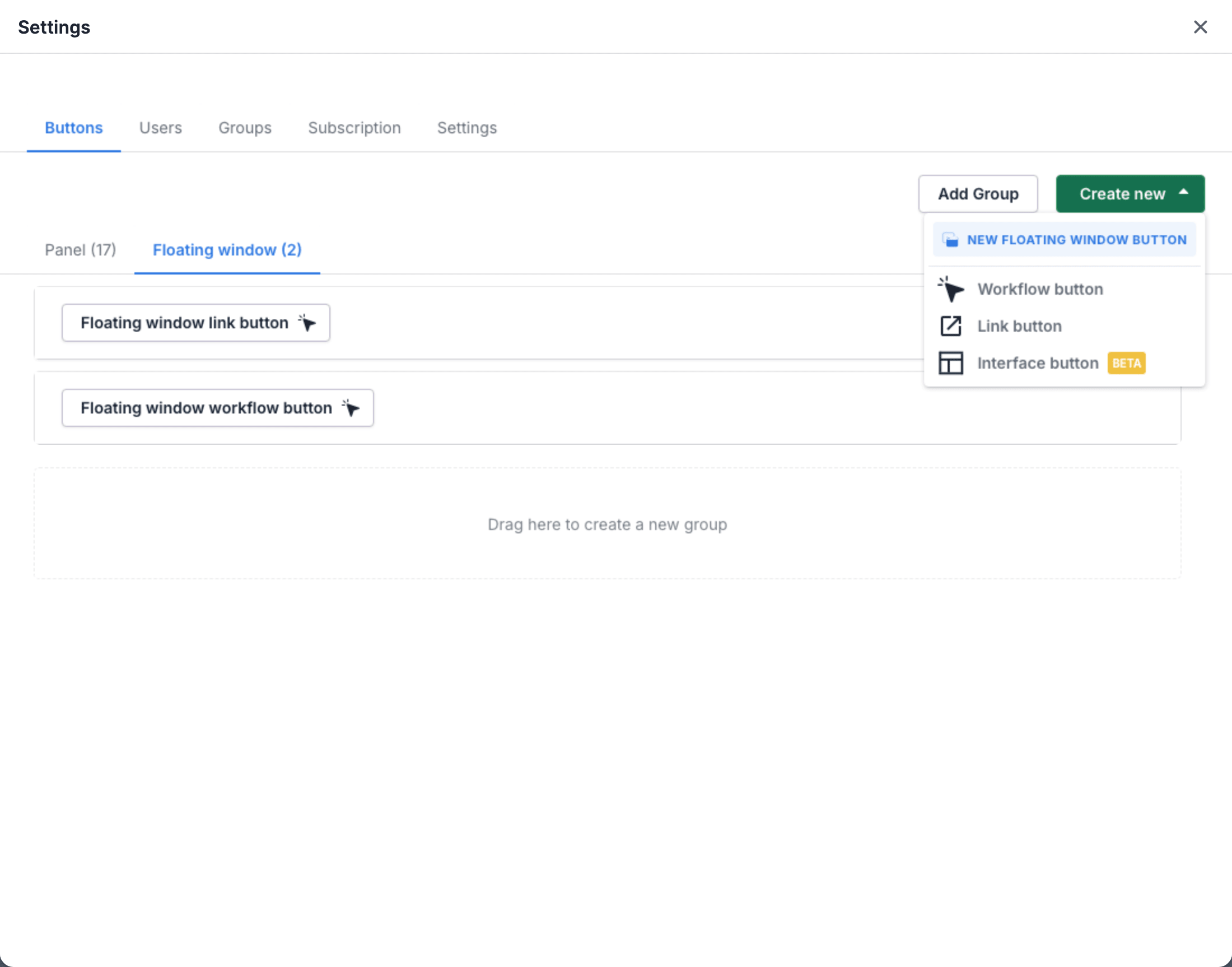
You cannot move a Button to the other place later. To have the same Button in the other place, make a new Button on the other tab.
Settings for all Button types
Section titled “Settings for all Button types”- Limit visibility: show a Button only for some records, pipelines, stages, users or groups.
- Manage Buttons: sort, group, duplicate and delete Buttons.
- Transfer a Button: copy a Button to the OneClick of another Pipedrive company.
- Migrate to API v2: move a Button to Pipedrive API v2.