Interface button
This page is for admins who make Buttons.
An Interface button opens an Interface view. You build the Interface view in Interface Builder. An Interface view is a screen with blocks such as text, tables and forms. For the view of the user, see Use an Interface view.
How an Interface button opens an Interface view
Section titled “How an Interface button opens an Interface view”- A Pipedrive user clicks the Interface button in the Panel of a deal, a person or an organization.
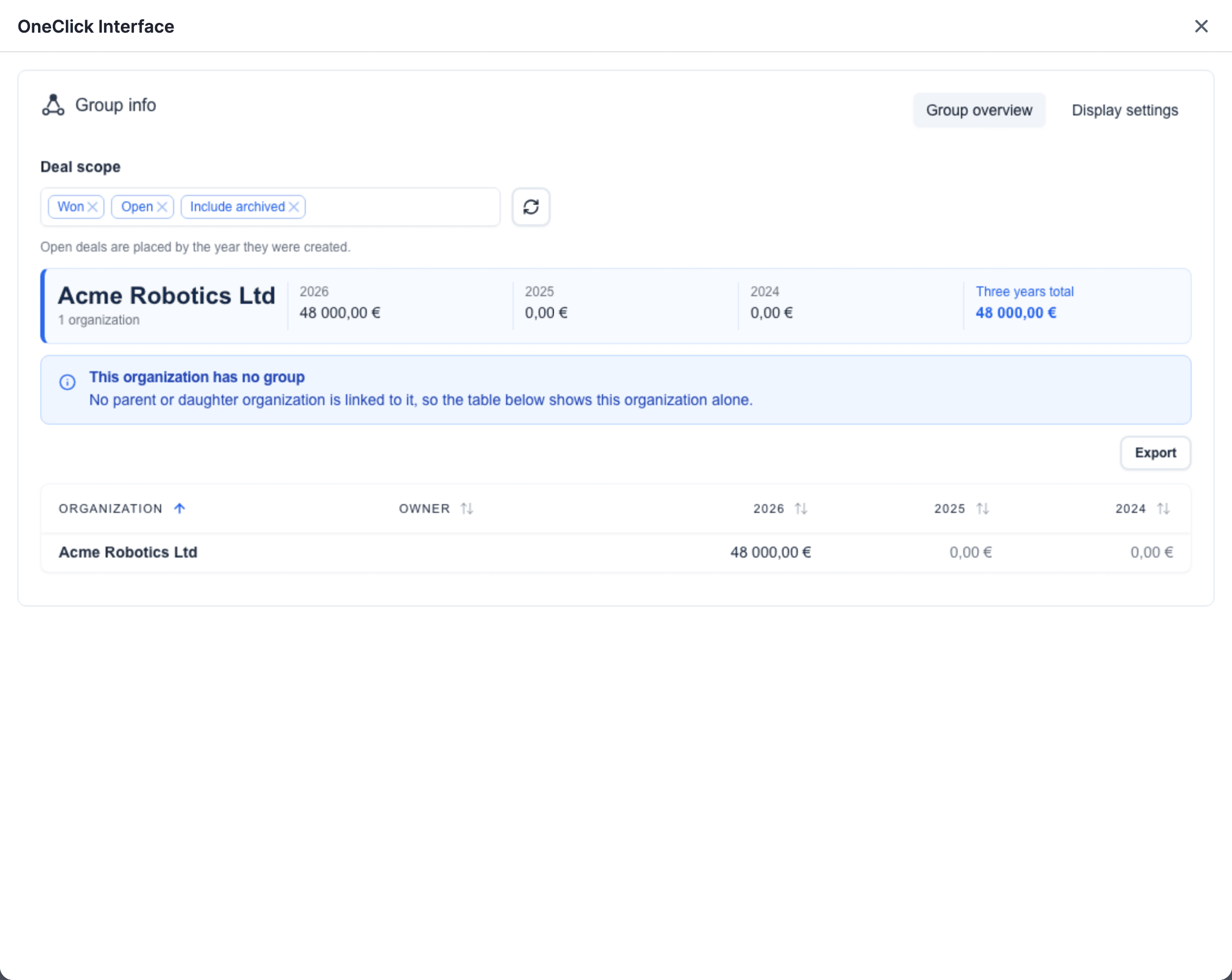
- A window with the title OneClick Interface opens over Pipedrive.
- The window shows the Interface view with the data of the record that the user has open.
OneClick gives the Interface view the type of the record and its ID. Thus a view that you open from a deal shows the title, the value and the fields of that deal. You do not get the record data yourself.
An Interface view can also show other data: the data of the user who presses the Button, and data from your own data source. Interface Builder sets these sources.
An Interface button in the Floating window gives no record data to its Interface view. See A Floating window Button gets no Pipedrive record. For the two places of an Interface button, see Panel and Floating window.
Make an Interface button
Section titled “Make an Interface button”- Open a deal, a person or an organization in Pipedrive.
- Click Settings at the bottom of the OneClick Panel. The Settings open on the Buttons tab.
- Click the Panel tab or the Floating window tab.
- Click Create new.
- Click Interface button. The menu shows it with the label BETA. The Button editor opens.
- Type the Button text. The user sees this text on the Button.
- Click Open interface builder. OneClick saves the Button and opens Interface Builder.
If the Create new menu does not show Interface button, the Interface button is not available for your company.
The settings of an Interface button
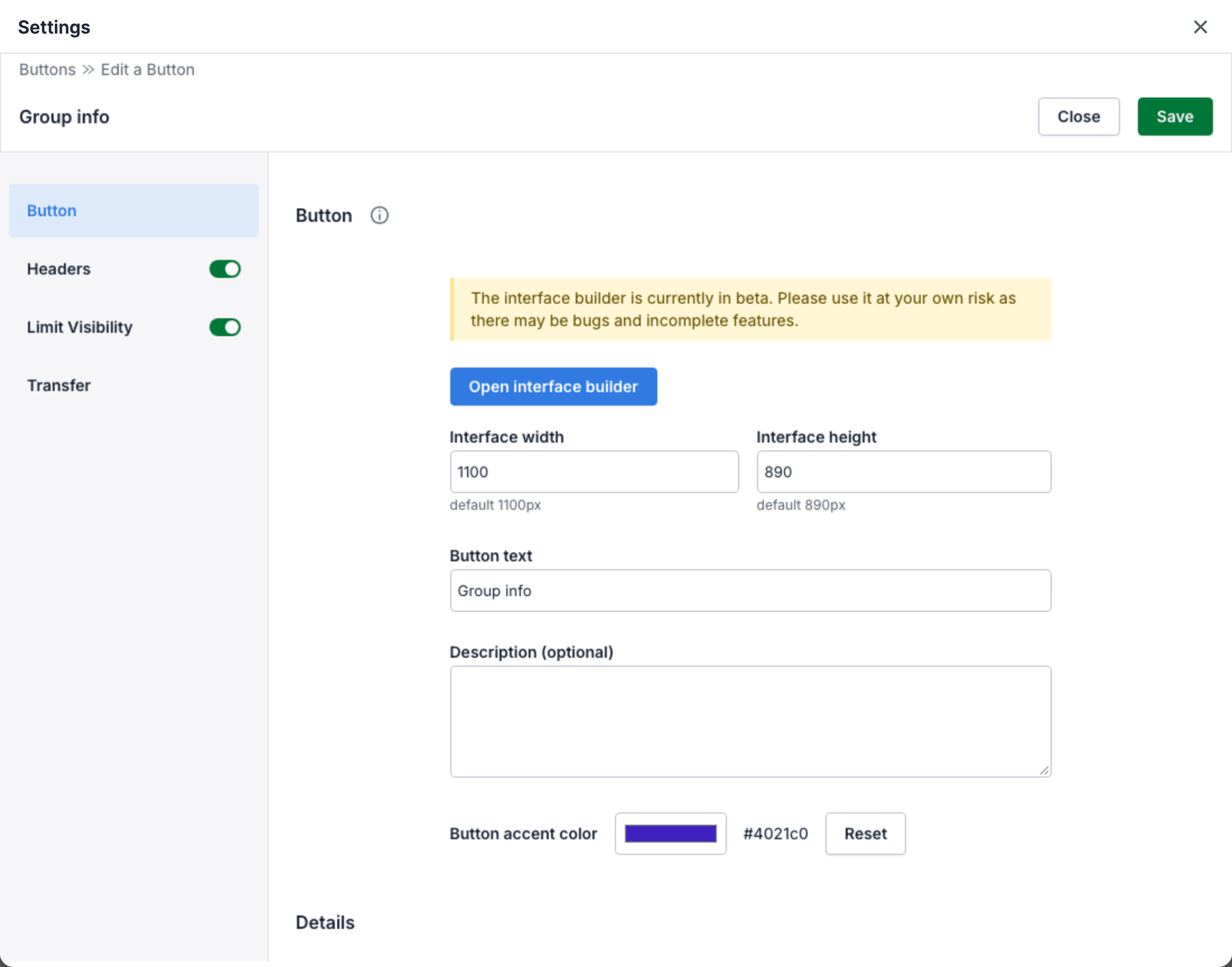
Section titled “The settings of an Interface button”The editor of an Interface button has these sections:
| Section | What you set |
|---|---|
| Button | The link to Interface Builder, the size of the window, the text, the description and the color. |
| Headers | The headers that OneClick adds to each request that the Interface view sends. |
| Limit Visibility | The records, pipelines, stages, users and groups that see the Button. See Limit visibility. |
| Transfer | A copy of the Button for the OneClick of another Pipedrive company. See Transfer a Button. The section shows only for a saved Button. |
The Button section has these settings:
- Open interface builder opens the Interface view of this Button in Interface Builder.
- Interface width is the width of the window in pixels. The default is 1100. The value must be from 320 to 2400.
- Interface height is the height of the window in pixels. The default is 890. The value must be from 120 to 1600.
- Button text is the label of the Button.
- Description (optional) is a text about the Button.
- Button accent color is the color of the Button. Click Reset to use the default color.
The section shows the warning The interface builder is currently in beta. Interface Builder can have bugs and features that are not complete.
Headers for the Interface view
Section titled “Headers for the Interface view”When the Headers section is on, each request of the Interface view sends the headers of the Button. For example, the request that gets the data of the view, and the request of a form. Set an API token here one time, and all requests send it. To send a header with only one request, set it in Interface Builder.
Where Interface Builder is
Section titled “Where Interface Builder is”You open Interface Builder from two places:
- From the Button editor. Click Open interface builder in the Button section. OneClick saves the Button first. Fill in all the required fields before you click it.
- From the Panel. An admin sees a layout icon at the right of each Interface button in the Panel. Click the icon to open the Interface view of that Button in Interface Builder.
Interface Builder saves each change immediately. The Interface view that users see changes at the same time. To try a change without risk, duplicate the Button. The copy has the Interface views of the original. Change the Interface view of the copy, and test it. See Manage Buttons.
To build an Interface view, see Interface Builder.