Read messages
This page is for Pipedrive users who press Buttons.
Your admin can set the process of a Button to send messages to you. A message can tell you the status of the process, for example that the process completed or stopped with an error. When a Button has messages, an envelope icon shows at the right of the Button.
The envelope icon
Section titled “The envelope icon”| Envelope icon | Meaning |
|---|---|
| Blue, with a dot | The Button has unread messages. |
| Red, with a dot | The Button has unread error messages. |
| Gray | You read all messages. |
Read the messages
Section titled “Read the messages”- Click the envelope icon at the right of the Button. OneClick shows the messages of the Button.
- Read the messages. OneClick marks a message as read when it shows on your screen.
- If a message is long, click [ show more ] to see all of the text.
- To go back to the list of Buttons, click Back.
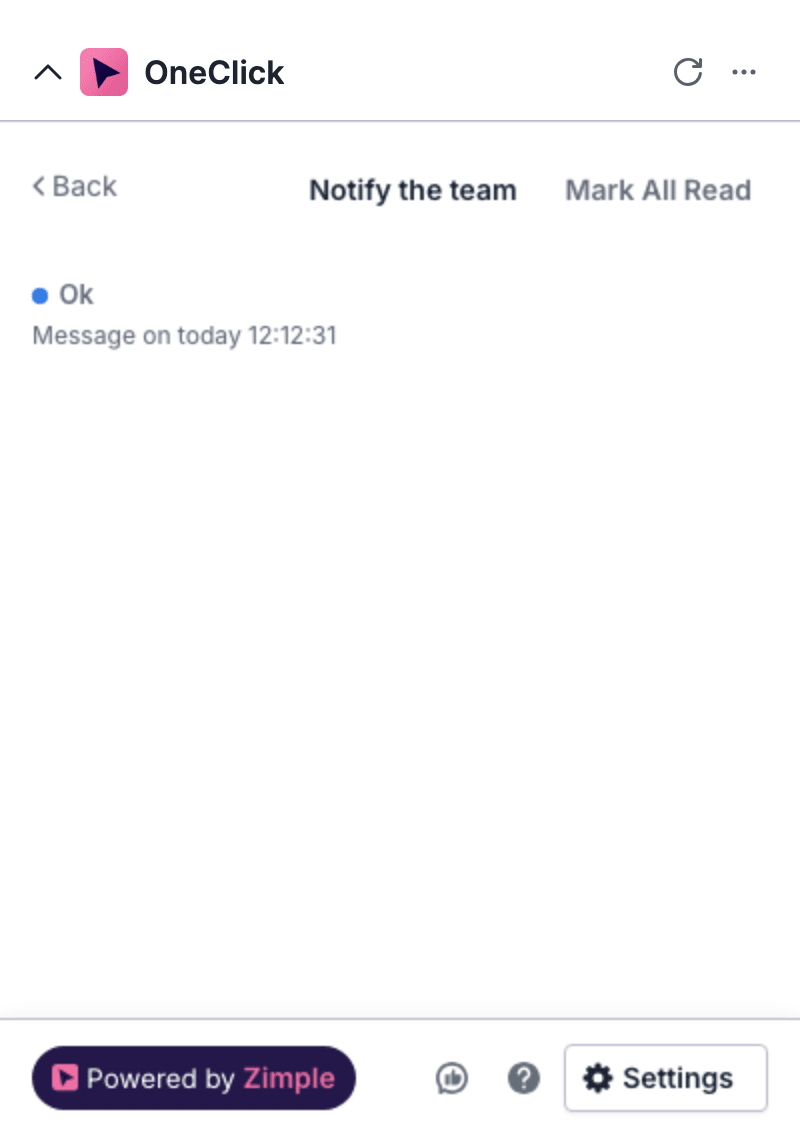
Each message has a colored dot and the date and time of the message. The color of the dot tells you the type of the message: success, information or warning. An error message has a red error icon and a red background.
An unread message has dark text. A read message has gray text. The list can also show the messages of other users who pressed the Button. These messages show as read.
Mark all messages as read
Section titled “Mark all messages as read”- Click the envelope icon at the right of the Button.
- Click Mark All Read. OneClick marks all messages of the Button as read.
Messages that block a Button
Section titled “Messages that block a Button”Your admin can block a Button until you read its messages. The Button is then gray, and you cannot press it. Move the mouse pointer over the Button to see the reason:
- You cannot press the button because there are unread errors: read the error messages.
- You cannot press the button because there are unread messages: read all messages.
Read the messages, or click Mark All Read. You can then press the Button again.
A link in a message
Section titled “A link in a message”The process can send a link with a message. OneClick then opens the link in a new browser tab after the press. The message shows the link.