Press a Button
This page is for Pipedrive users who press Buttons.
Press a Button
Section titled “Press a Button”- Open a deal, a person or an organization in Pipedrive. To use a Floating window Button, open the Floating window.
- Find the Button in the Panel or in the Floating window. If the Panel shows Hover here to reveal buttons, move the mouse pointer over it.
- Click the Button.
What happens next depends on the Button type:
- A Workflow button sends the data of the record to the process that your admin connected. The process starts.
- A Link button opens a page in a new browser tab or in a pop-up window. The address of the page can contain values from the record.
- An Interface button opens an Interface view. See Use an Interface view.
Steps before OneClick sends the data
Section titled “Steps before OneClick sends the data”A Workflow button can show one or more views before OneClick sends the data. Your admin sets these views.
- Fields. The Button shows fields. Examine the values, fill in the empty fields and click the Button again. See Fill in the fields.
- Confirmation. The Button asks you to confirm the press. The default text is Are you sure you want to trigger this button? Click Yes to continue or Cancel to stop. Your admin can change these texts.
- Deal products. On a deal, the Button can send the products of the deal. If the products are required and the deal has no products, OneClick shows Deal products are required. Please add at least 1 product and try again. Add a product to the deal in Pipedrive and press the Button again.
To go back to the list of Buttons, click Back.
Read the description of a Button
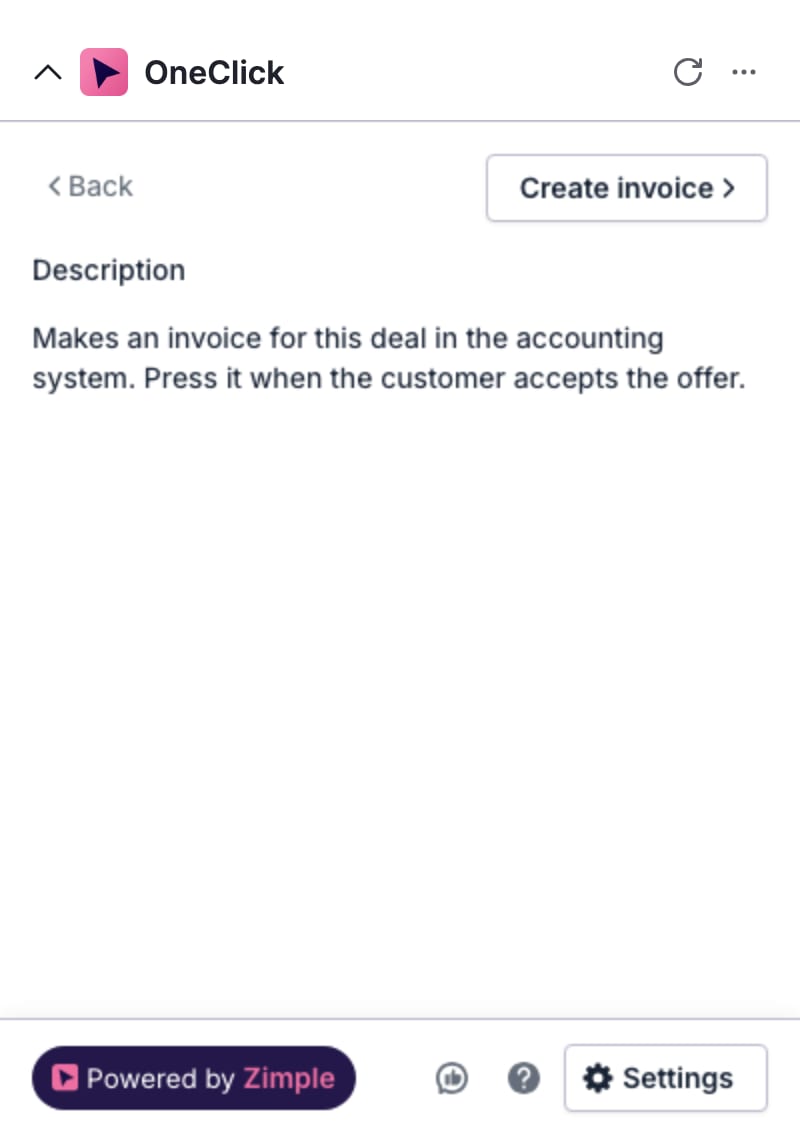
Section titled “Read the description of a Button”A Button with an info icon (i) has a description. The description can tell you what the Button does and when to use it.
- Click the info icon at the right of the Button. OneClick shows the description.
- To press the Button, click the Button above the description.
- To go back to the list of Buttons, click Back.
The result of a press
Section titled “The result of a press”- While OneClick sends the data, the Button shows a loading indicator.
- Your admin can set the Button to show the answer of the process. A green check mark on the Button means that the process accepted the data. The check mark goes away after 2 seconds.
- A red exclamation mark on the Button means that the process did not accept the data. Click the exclamation mark. OneClick shows Failed and the message from the process.
- Your admin can set the process to send messages to you. See Read messages.
When you cannot press a Button
Section titled “When you cannot press a Button”A Button that you cannot press is gray. Move the mouse pointer over the Button to see the reason.
- Cooldown. Your admin can block a Button for some seconds after a press. The Button then shows a circle that fills up. When the circle is full, you can press the Button again.
- Unread messages. Your admin can block a Button until you read its messages or its error messages. Read the messages. See Read messages.
- Missing deal products. The Button needs deal products, and the deal has none.
If a Link button shows The browser blocked the window. Allow pop-ups for OneClick and press again., allow pop-up windows for OneClick in your browser settings. Then press the Button again.