Limit visibility
This page is for admins who make Buttons.
With Limit Visibility, a Button shows only where it applies. For example, a Button that sends a deal to invoicing must show only on deals, not on persons or organizations. All Button types have this section.
Turn on Limit visibility
Section titled “Turn on Limit visibility”- Open the Button editor. See Make a Button.
- In the menu at the left, turn on the switch of Limit Visibility.
- Click Limit Visibility. The section shows the visibility fields.
- Select the values in one or more fields. The next section tells what each field does.
- Click Save.
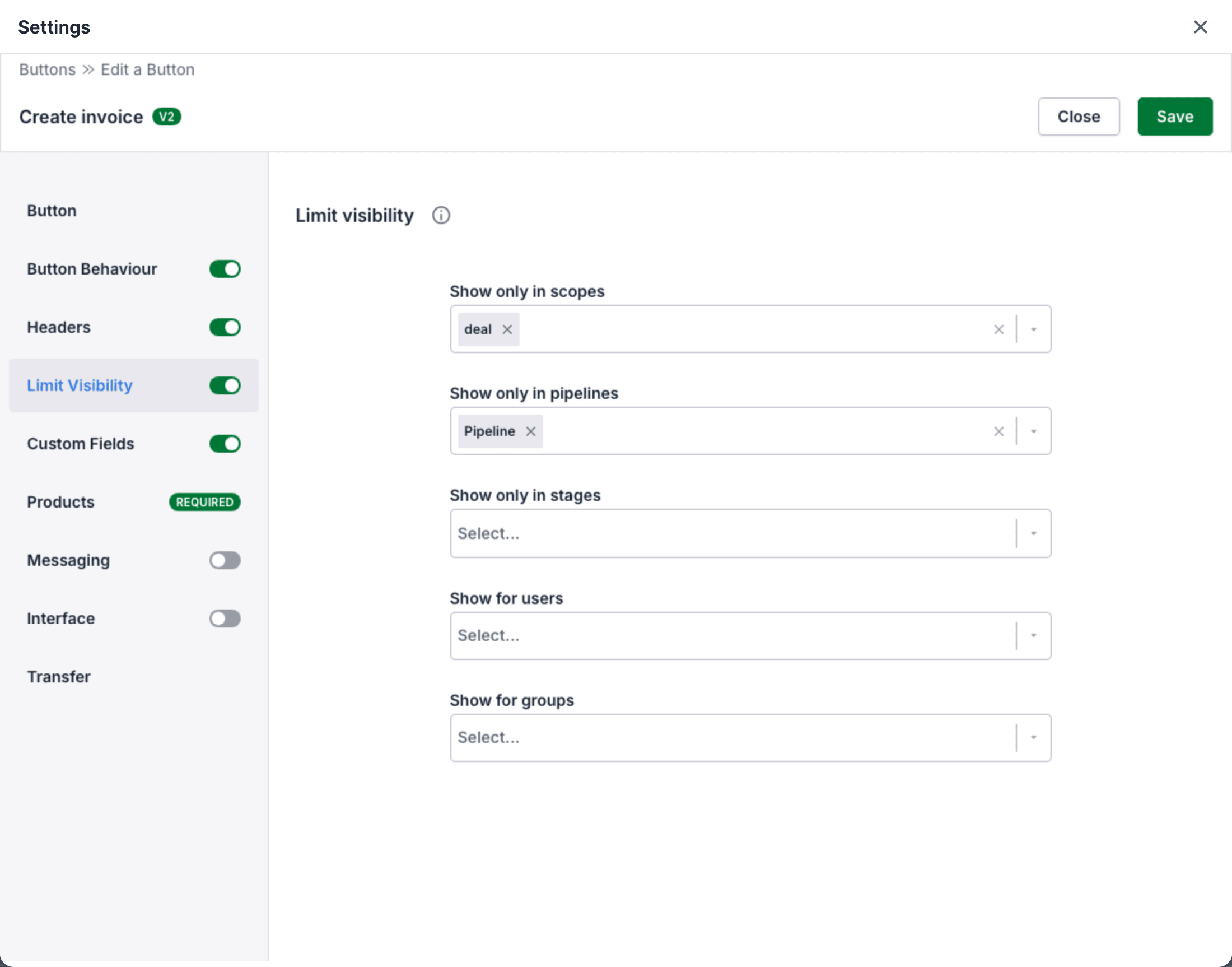
If the switch is on and all fields are empty, OneClick does not save the Button. It shows If the visibility is selected, one of the fields must be filled.
To remove all limits, turn off the switch of Limit Visibility and click Save.
The visibility fields
Section titled “The visibility fields”An empty field does not limit the Button.
| Field | The Button shows only |
|---|---|
| Show only in scopes | On the selected record types: deal, organization or person. |
| Show only in pipelines | On deals in the selected pipelines. |
| Show only in stages | On deals in the selected stages. |
| Show for users | For the selected users, and for the users in the groups of Show for groups. |
| Show for groups | For the users in the selected groups, and for the users of Show for users. |
Pipelines and stages
Section titled “Pipelines and stages”- You can select pipelines only when Show only in scopes contains deal. If you remove deal from the scopes, OneClick clears the pipelines and the stages.
- Show only in stages shows only the stages of the selected pipelines. You cannot select a stage without its pipeline.
- A pipeline with no selected stage shows the Button in all of its stages. For example, select the pipelines “Sales” and “Renewals”, and select only the stage “Proposal” of “Sales”. The Button then shows in the stage “Proposal” of “Sales” and in all stages of “Renewals”.
Users and groups
Section titled “Users and groups”Show for users and Show for groups work together. A user sees the Button if the user is in Show for users or is a member of a group in Show for groups.
You make the groups on the Groups tab of the OneClick Settings. See Groups.
How the fields work together
Section titled “How the fields work together”A user sees the Button only if all filled-in fields agree. For example, a Button with the scope deal, the pipeline “Sales” and the group “Sales team” shows only on deals in “Sales”, and only for the members of “Sales team”.
Use Show only in scopes when a Workflow button sends deal fields. A Button that you press on a person or an organization does not have the data of a deal.
Floating window Buttons
Section titled “Floating window Buttons”A Floating window Button belongs to no record. Thus its Limit Visibility section has only Show for users and Show for groups. See The Panel or the Floating window.
What the user sees
Section titled “What the user sees”When no Button applies to the record or to the user, the Panel shows Nothing to see here. See Why no Buttons show.