Fill in the fields
This page is for Pipedrive users who press Buttons.
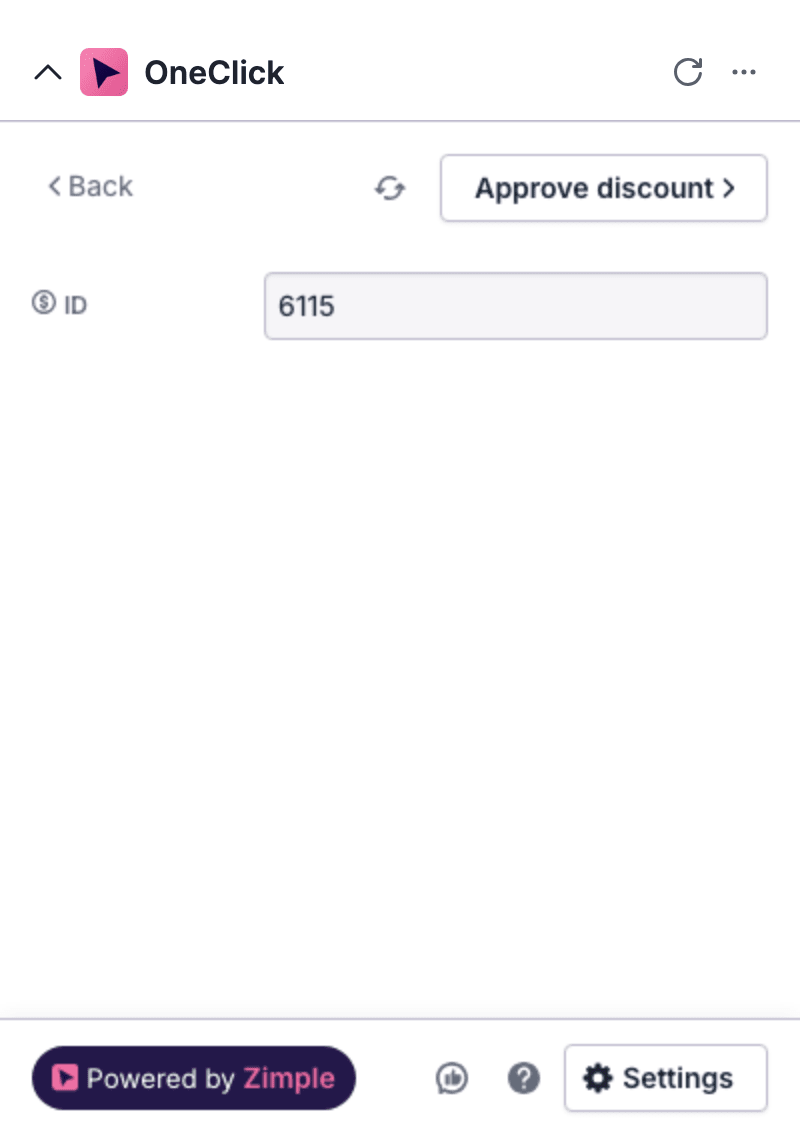
A Button with an arrow (>) after its name has fields. When you click the Button, OneClick shows the fields before it sends the data. You can then examine the data, and add data that the process needs.
Send the data with fields
Section titled “Send the data with fields”- Click the Button. OneClick gets the field values from Pipedrive and shows the fields.
- Examine the values of the Pipedrive fields.
- Fill in the fields that you can edit.
- Click the Button at the top of the fields. OneClick examines the fields. If all fields are valid, OneClick sends the data.
To go back to the list of Buttons without a press, click Back.
The types of fields
Section titled “The types of fields”An icon at the left of the field name tells you where the value comes from:
- Deal icon, person icon or organization icon: a Pipedrive field of the deal, the person or the organization. You cannot edit the value in OneClick.
- Circular arrow icon: a disposable field. You fill in the value in OneClick. OneClick sends the value with this press only, and does not save it in Pipedrive.
A disposable field can be text, a number, a date, an email address, a check box, a list of options, Pipedrive users or a Pipedrive filter. Your admin can give a field a default value.
Your admin can also add headers, labels and dividers between the fields. These help you to read the fields.
Change a Pipedrive field value
Section titled “Change a Pipedrive field value”You cannot edit a Pipedrive field in OneClick.
- Change the value in the deal, the person or the organization in Pipedrive.
- In OneClick, click the refresh icon at the left of the Button. OneClick gets the values from Pipedrive again.
- Click the Button.
Required fields and errors
Section titled “Required fields and errors”A field name with an asterisk (*) is a required field. A required field must have a value.
When you click the Button, OneClick examines the fields. If a field is not valid, OneClick does not send the data. It shows a red border and an error message at the field. Move the mouse pointer over the Button to see Some fields are invalid or incomplete.
A field is not valid in these cases:
- A required field has no value.
- A field must be empty, but it has a value. The default error message is Field must be empty. For example, a field that holds an invoice number must be empty, so that you do not make the same invoice two times.
- The value does not agree with a rule of your admin, for example a number range or a date range. Your admin writes the error message for each rule.
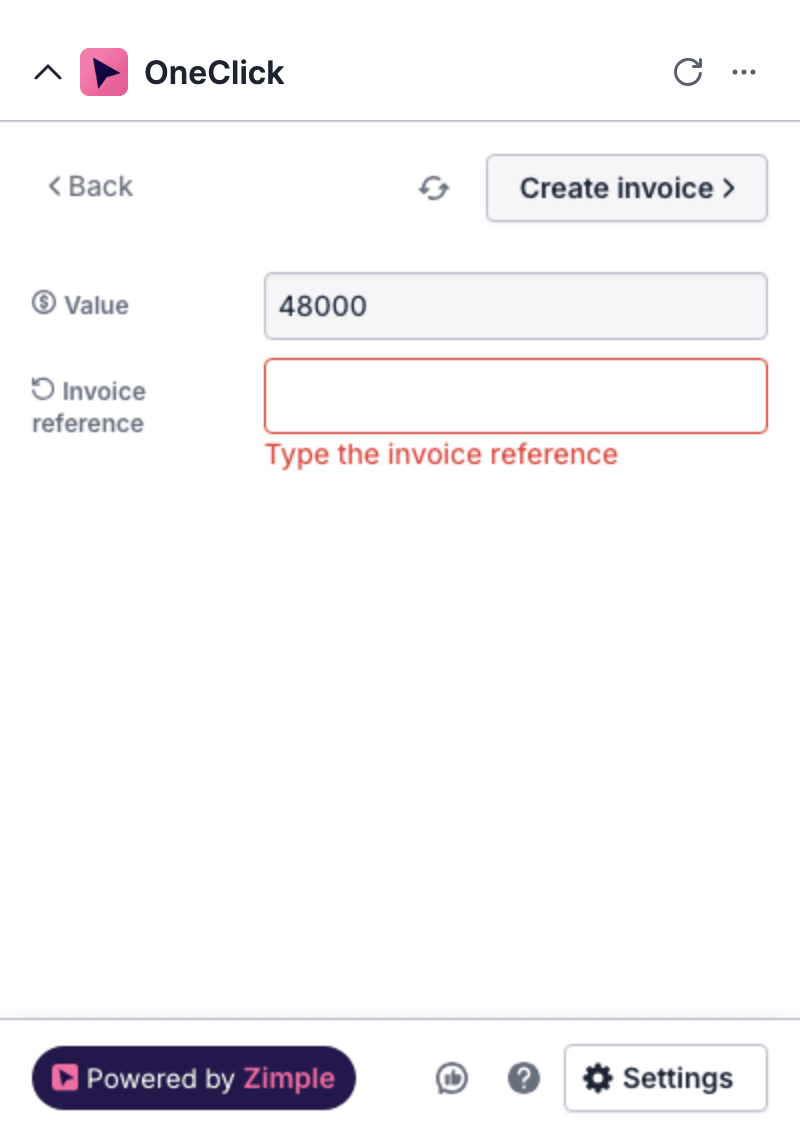
If a rule applies to more than one field, OneClick shows the error message above the fields. If there is more than one error, click Show more (N) to see all errors. N is the number of the other errors.
Correct the values and click the Button again.
A Button with hidden fields
Section titled “A Button with hidden fields”Your admin can hide fields. If all fields are hidden and valid, OneClick does not show the fields. It shows Sending… and sends the data. If a hidden field is not valid, OneClick shows the field and its error message.