Headers
This page is for admins who make Buttons.
The Headers section adds your own HTTP headers to the request of a Workflow button. Use a header to send an API token, so that only OneClick can start your process. A header can also send other fixed data.
OneClick always sends some headers of its own. See The headers of the request.
Add a header
Section titled “Add a header”- Open the Button in the Button editor.
- Turn on the switch at the right of Headers in the menu.
- Click Headers. The section opens with an empty header.
- Type the name of the header in Key.
- Type the value of the header in Value. The field hides the value. Click the eye icon to show it.
- To add one more header, click Add new.
- Click Save.
To remove a header, click the bin icon at the right of the header.
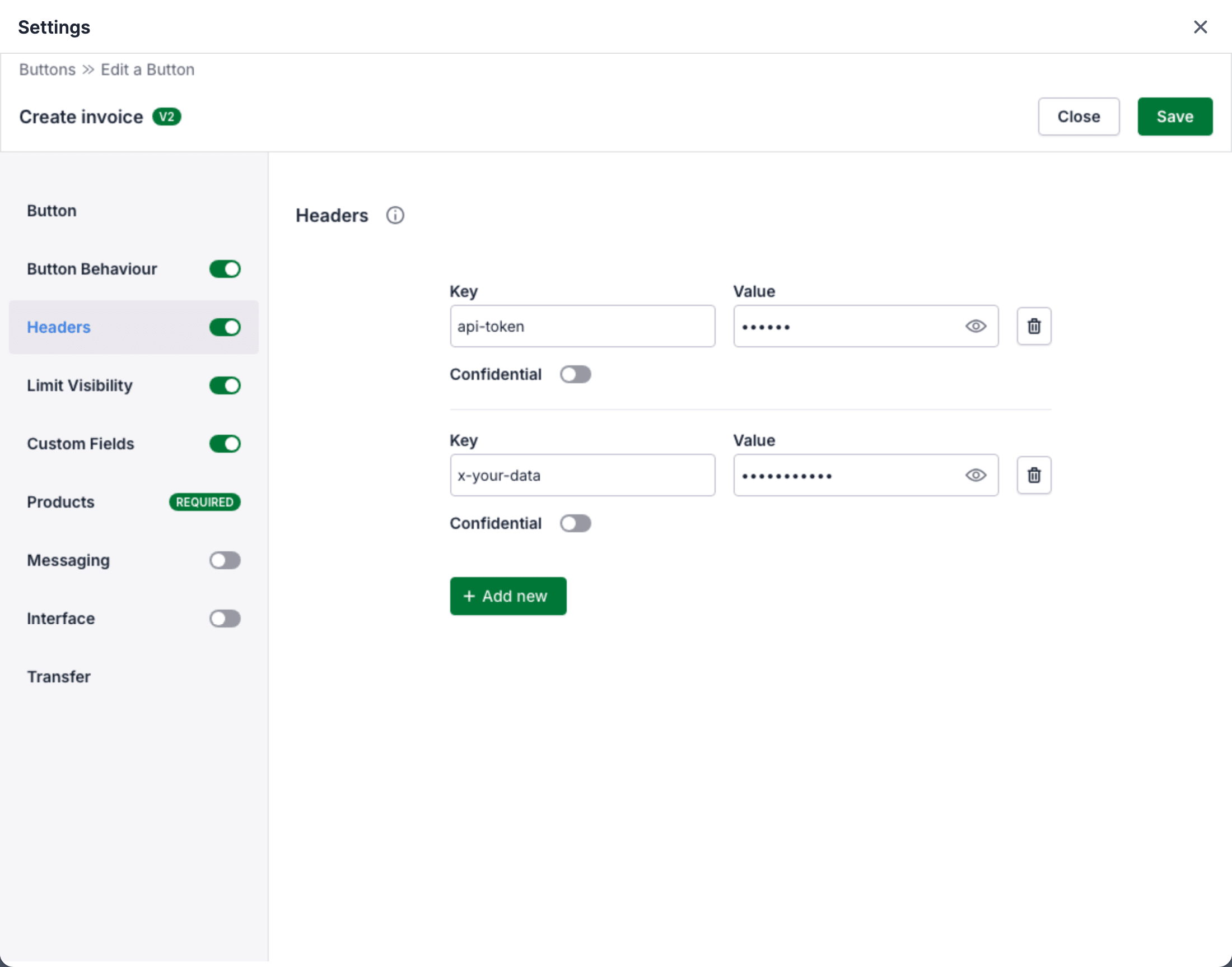
With the headers api-token and x-your-data, the request gets these headers:
api-token: 123456x-your-data: Hello worldRules for the key and the value
Section titled “Rules for the key and the value”- The key can contain letters, numbers, hyphens (
-) and underscores (_). Do not use underscores: some servers remove headers with underscores in the name. - The key can have a maximum of 190 characters. The value can have a maximum of 1024 characters.
- Two headers cannot have the same key. OneClick does not look at upper case and lower case.
- Some keys are reserved, for example
Content-Type,Host,User-Agent,X-oc-user-id,X-oc-company-idandX-oc-event-id. OneClick then shows This key is reserved. - When the section is on, it must have at least one header.
Confidential headers
Section titled “Confidential headers”Turn on Confidential to hide the value of a header from other admins. Only the admin who added the header can see and change its value.
A confidential header that another admin added has these effects for you:
- You cannot see or change its key and its value. A warning icon at the right of the header tells who added it.
- You cannot change the Button URL. With a new URL, you could send the value to a server that shows it. The field shows You cannot edit the URL, as this button contains confidential headers added by users other than you.
- You cannot duplicate the Button. OneClick shows You are not authorized to copy this button because it contains confidential headers.
- You can delete the header. Thus a header of a deleted user does not lock the Button.
You cannot set a header of another admin as confidential.
Headers on other Button types
Section titled “Headers on other Button types”An Interface button also has a Headers section. See Headers for the Interface view. A Link button has no Headers section.