Custom fields
This page is for admins who make Buttons.
The Custom Fields section adds fields to a Workflow button. When the user clicks the Button, OneClick shows the
fields before it sends the data. The user can examine the values and fill in the fields that the process needs. The
request then contains the values in the key fields.
For the view of the user, see Fill in the fields.
Add a field
Section titled “Add a field”- Open the Button in the Button editor.
- Turn on the switch at the right of Custom Fields in the menu.
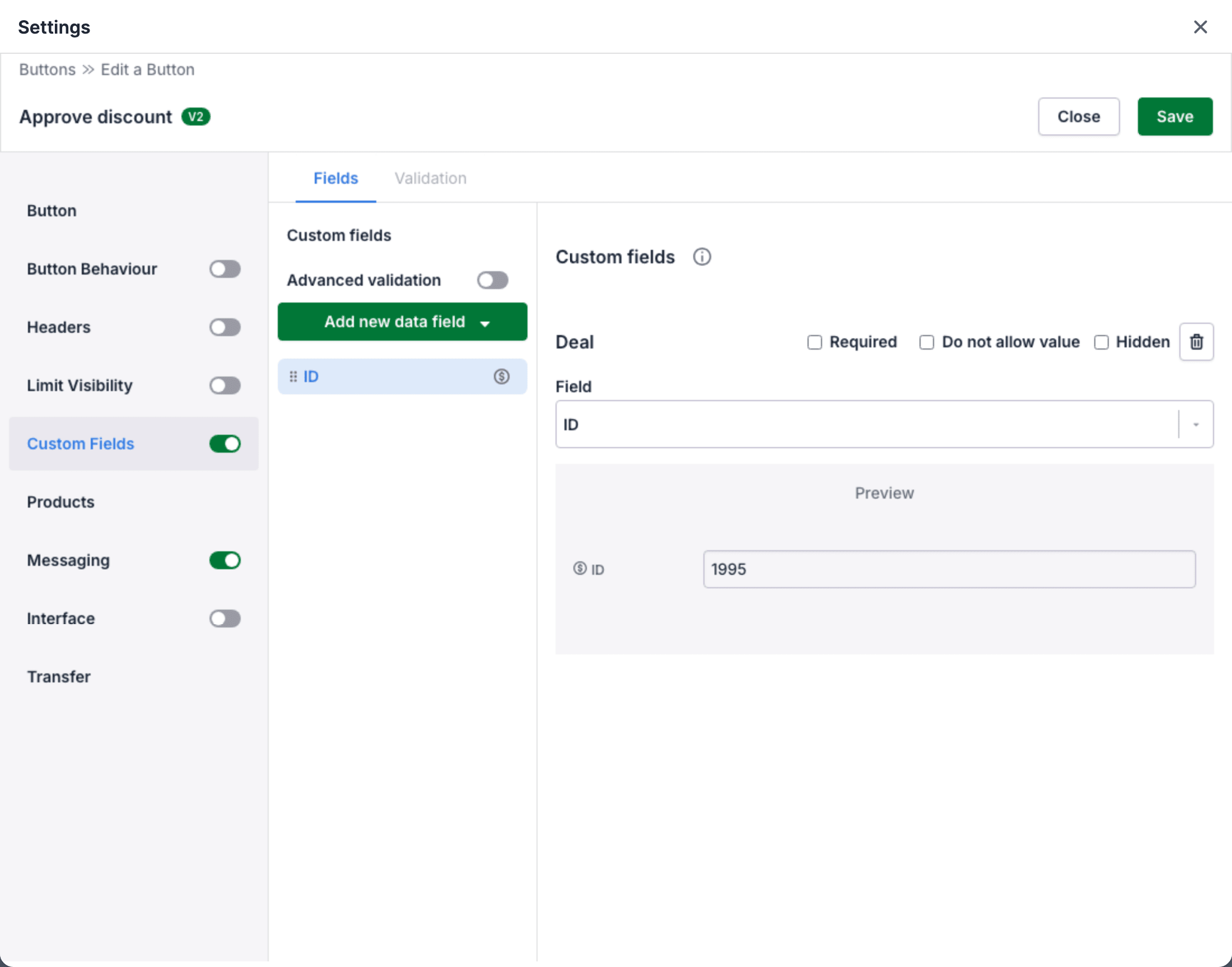
- Click Custom Fields. The section opens on the Fields tab.
- Click Add new data field.
- Select the type of field: Deal, Organization, Person, Disposable or Additional element. The field shows at the top of the list.
- Set the field at the right of the list. The Preview below the settings shows the field as the user sees it.
- Click Save.
To open a field, click it in the list. To remove the open field, click the bin icon at the top right.
When the section is on, it must have at least one field. A section with only additional elements is not valid. Then OneClick shows Also choose one of the other field types: deal, person, organization, or disposable.
Pipedrive fields
Section titled “Pipedrive fields”A Deal, Organization or Person field shows the value of a Pipedrive field of the record. Select the field in Field. The list contains the standard fields and the custom fields of Pipedrive. It also contains fields that a user cannot edit, for example ID.
The user cannot edit a Pipedrive field in OneClick. To change the value, the user changes it in Pipedrive.
You can add each Pipedrive field to a Button one time.
Disposable fields
Section titled “Disposable fields”A disposable field is a field that the user fills in. OneClick sends the value with this press only and does not save it in Pipedrive. At the next press, the field shows its default value again.
| Setting | What you set |
|---|---|
| Field type | The type of the value. See the table below. |
| Field label | The name that the user sees. |
| Field key | The key of the value in the request. OneClick makes the key from the label. You can change it. |
| Default value | The value that the field shows at the start. |
Two disposable fields of a Button cannot have the same key.
| Field type | The value |
|---|---|
| Boolean | A switch: on or off. |
| Date | A date. |
| An email address. | |
| Number | A number. |
| Short text | A text of one line. The default value can have a maximum of 255 characters. |
| Long text | A text of more lines. The default value can have a maximum of 2000 characters. |
| Single select | One option from a list. |
| Multi select | One or more options from a list. |
| Users | One Pipedrive user, or more users when Allow multiple users is on. |
| Filter | One Pipedrive filter, or more filters when Allow multiple filters is on. |
Options of a select field
Section titled “Options of a select field”A Single select or Multi select field must have at least one option.
- Click Add option. An empty option shows in Options.
- Click the option and type its name.
- To change the sequence, drag the option with the handle at the left.
- To remove an option, click the bin icon at the right of the option.
After you save the Button, each option shows its ID, for example ID: 12. Before the save, it shows ID: N/A. The request sends the ID with the name of the option. Use the ID in your process: the ID stays the same when you change the name of the option.
Default value of a Users field
Section titled “Default value of a Users field”For a Users field, you can select a Pipedrive user or Current user. Current user is the user who presses the Button.
Settings of a Filter field
Section titled “Settings of a Filter field”- Allowed filter types sets the types of filters that the user can select, for example
deals. When it is empty, the user can select all types. - Allowed filters sets the filters that the user can select. The list contains the shared filters of Pipedrive. When it is empty, the user can select all shared filters.
- Default value sets the filter that the field shows at the start.
Additional elements
Section titled “Additional elements”An additional element helps the user to read the fields. It sends no data. Select the element in Type:
- header: a title. Select the Size: small, medium or large. Type the Text.
- label: a text. Type the Text.
- divider: a line. Select the Color. Click Set Default to use the default color.
Required, Do not allow value and Hidden
Section titled “Required, Do not allow value and Hidden”Each field has check boxes at the top right of its settings:
| Check box | What it does | Fields |
|---|---|---|
| Required | The field must have a value. A Boolean field must be on. | Pipedrive and disposable |
| Do not allow value | The field must be empty. | Pipedrive |
| Hidden | The user does not see the field. OneClick sends its value. | Pipedrive |
A field cannot be Required and Do not allow value at the same time.
When a field is not valid, OneClick does not send the data. It shows the field with an error message. A hidden field that is not valid also shows. See Required fields and errors.
Do not allow value
Section titled “Do not allow value”Use Do not allow value to stop a second press. For example, your process writes an invoice number into a Pipedrive field. Set that field to Do not allow value. Then the user cannot make the same invoice two times. You can also set the field to read-only in Pipedrive.
When you select Do not allow value, the field Custom error message shows. The user sees this message when the field has a value. The maximum is 50 characters. If you leave it empty, the user sees Field must be empty.
Rules for more than one field
Section titled “Rules for more than one field”For rules such as a number range, a date range or a text format, use Advanced validation. When Advanced validation is on, the fields have no Required and Do not allow value check boxes, and OneClick ignores their old values.
The sequence of the fields
Section titled “The sequence of the fields”The user sees the fields in the sequence of the list. To change the sequence, drag a field in the list with the handle at its left.
Where the fields show
Section titled “Where the fields show”The fields that the user sees depend on the record:
| The user presses the Button on | The user sees |
|---|---|
| A deal | Deal, organization, person and disposable fields. |
| An organization | Organization and disposable fields. |
| A person | Person and disposable fields. |
To show a Button with deal fields only on deals, use Limit visibility.
A Floating window Button belongs to no record. Thus Add new data field shows only Disposable and Additional element. See A Floating window Button gets no Pipedrive record.
A Link button and an Interface button have no Custom Fields section.
The data that the Button sends
Section titled “The data that the Button sends”The key fields of the request contains one object for each type of field: deal, organization, person and
disposable. In each object, the key of a field is its field key. A press with the deal field ID and a disposable
field Discount reason sends this:
{ "fields": { "deal": { "id": { "default_value": null, "field_key": "id", "field_label_value": 6115, "field_name": "ID", "field_type": "int", "field_value": 6115, "is_hidden": false, "is_multiple_users_allowed": false, "is_required": false, "is_not_allowed": false, "custom_error_message": "" } }, "disposable": { "discount_reason": { "default_value": null, "field_key": "discount_reason", "field_label_value": "Large order", "field_name": "Discount reason", "field_type": "varchar", "field_value": "Large order", "is_hidden": false, "is_multiple_users_allowed": false, "is_required": true, "is_not_allowed": false, "custom_error_message": "Field must be empty" } } }}| Key | Value |
|---|---|
field_key |
The key of the field. For a Pipedrive field, this is the API key of the field in Pipedrive. |
field_name |
The name of the field. |
field_type |
The type of the field in Pipedrive or the type of the disposable field. |
field_label_value |
The value as the user sees it. |
field_value |
The value. For an option field, it can be the ID of the option. |
default_value |
The default value of a disposable field. |
is_hidden |
true when the field is hidden. |
is_required |
true when the field is required. |
is_not_allowed |
true when the field must be empty. |
custom_error_message |
The error message for a field that must be empty. |
is_multiple_users_allowed |
true when a Users field accepts more than one user. |
For a Single select field, field_value is an object with the name and the key (the ID) of the option. For a
Multi select field, it is a list of these objects. For a Filter field, it is a list with the name, the key
and the type of each filter.
A Pipedrive field key of a custom field is a long code. To find it, open Company settings > Data fields in Pipedrive.