Show invoices in Xero
This page is for admins who make Buttons.
In this guide, you make a Link button that opens the invoice activity of a customer in Xero. The URL uses the Xero ID of the customer.
You need an organization field that contains the Xero contact ID of the customer, for example a custom field Xero ID. An integration fills in this field, for example a Make scenario or a Zap that makes the customer in Xero. For Xero in these tools, see the help of Make and Zapier.
Get a sample URL
Section titled “Get a sample URL”- Open Xero.
- Open the contacts and select a customer. Xero shows the activity of the customer.
- Copy the URL from the address bar of the browser.
The URL is long. Keep the part to /activity/ and delete the rest:
https://go.xero.com/app/!wz58Q/contacts/contact/d79ce333-a1a4-41fa-996e-5c09e9032f3d/activity/The part after /app/, here !wz58Q, identifies your Xero organization. Your URL has a different value. The part
between contact/ and /activity/ is the Xero ID of the customer. The Link button puts the Xero ID of the
organization in its place.
Make the Link button
Section titled “Make the Link button”- Open a deal or an organization in Pipedrive.
- Make a Link button and type the Button text, for example
Show invoices in Xero. See Make a Link button. - Click Dynamic URL in the menu.
- Paste the sample URL into the first text element.
- Delete the Xero ID of the sample customer. Keep the slashes at the two sides of it.
- Click in the text at the position of the deleted ID.
- Click Split in the URL toolbox. The text divides into two elements. The right element contains
/activity/. - Put the pointer on the left element and click Add dynamic field. A field element shows between the two text elements.
- Click the Organization tab of the field picker.
- Type the name of your Xero ID field in Search by name or key, and click the field.
- Click Save.
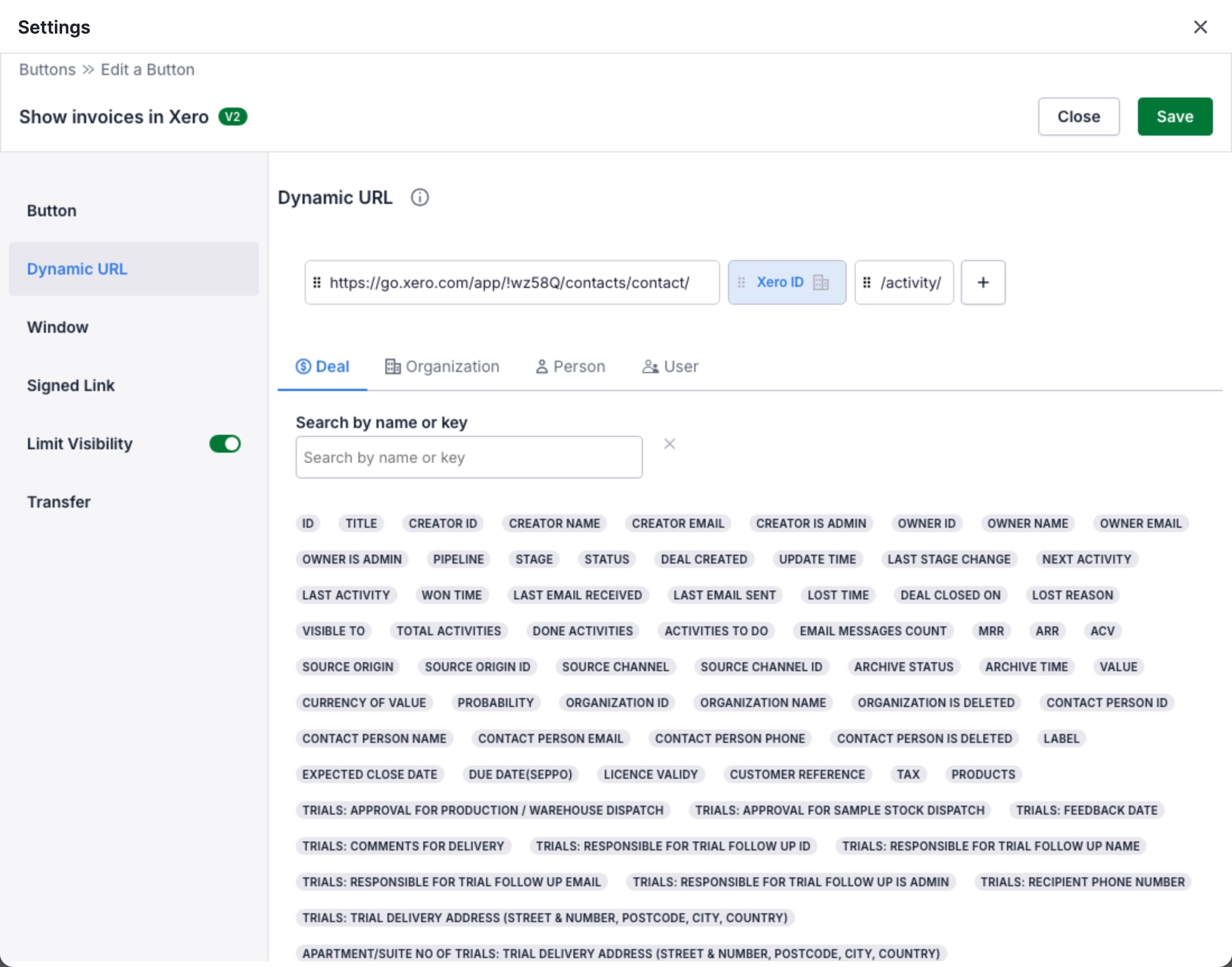
For the URL toolbox and the field picker, see Dynamic URL.
Show the Button only where it applies
Section titled “Show the Button only where it applies”On an organization, OneClick reads the Xero ID of that organization. On a deal, it reads the Xero ID of the organization of the deal. On a person, the URL has no value. See Fields and the record of the click.
- Turn on the switch of Limit Visibility and click Limit Visibility.
- In Show only in scopes, select organization. To show the Button on deals too, also select deal.
- Click Save.
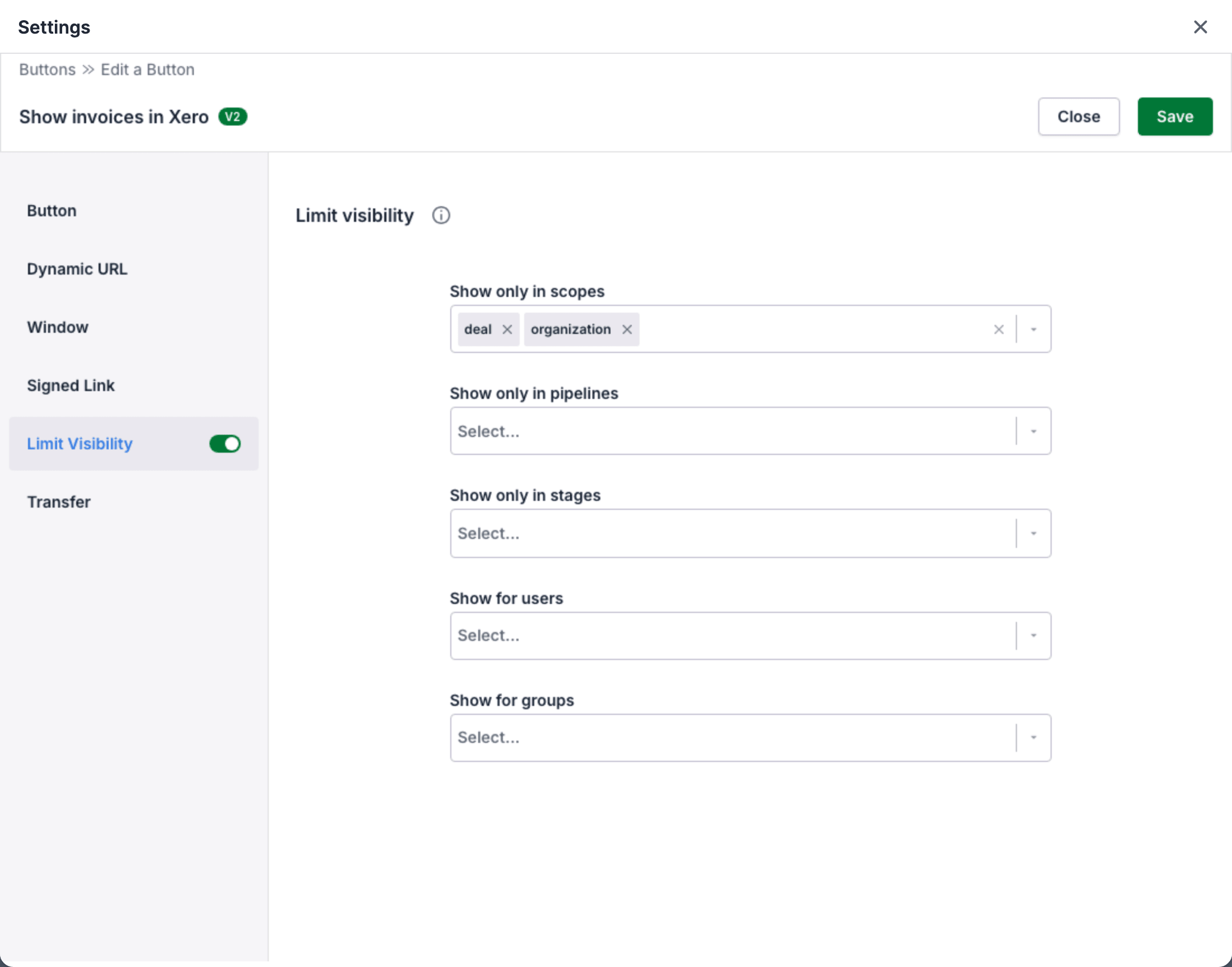
See Limit visibility.
Test the Button
Section titled “Test the Button”- Open an organization that has a value in the Xero ID field.
- Click the Button in the OneClick Panel. Xero opens the activity of the customer.
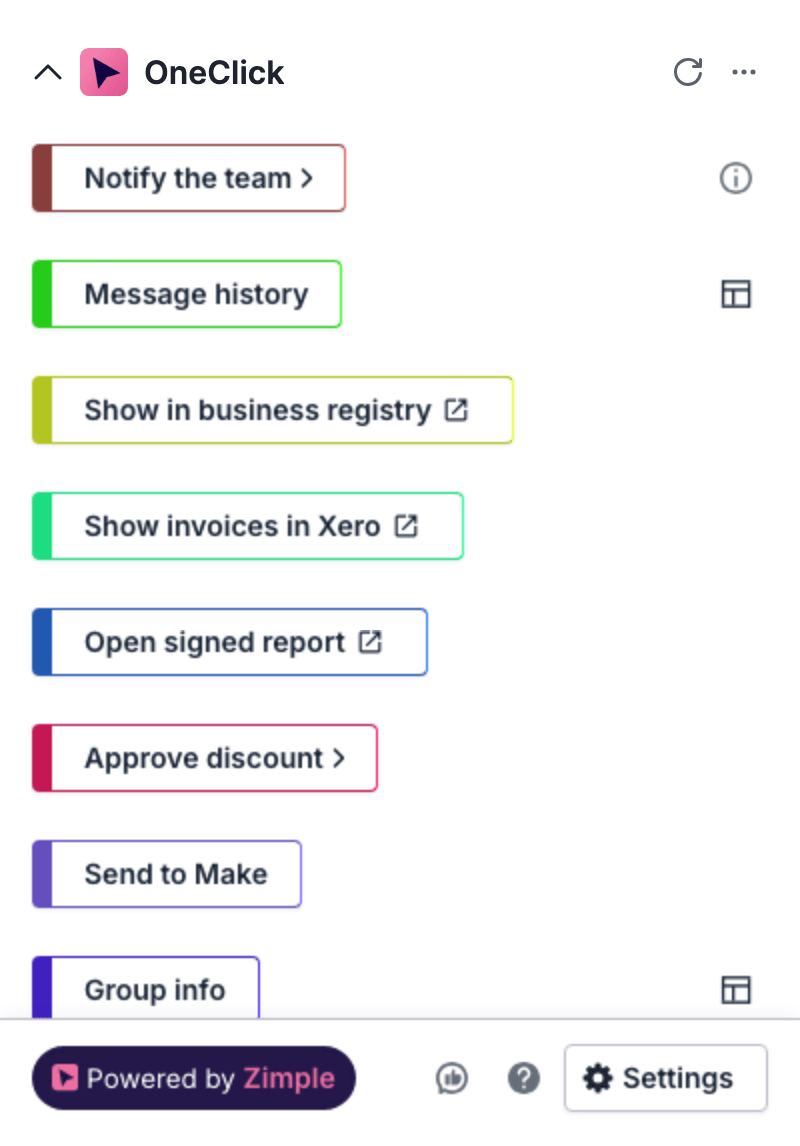
If the Xero ID field is empty, OneClick does not open the URL. The Panel shows an error in place of the Button.
Open one invoice from a deal
Section titled “Open one invoice from a deal”You can use the same steps to open one invoice from a deal. You then need a deal field that contains the Xero ID of the invoice, for example a custom field Xero invoice ID.
- Open the invoice in Xero and copy the URL from the address bar.
- Make a Link button. In the Dynamic URL, replace the ID of the invoice with the invoice field from the Deal tab of the field picker.
- In Show only in scopes, select deal.