Workflow button
This page is for admins who make Buttons.
A Workflow button sends the data of a Pipedrive record to a URL. The URL is usually a Make or Zapier webhook, or an endpoint on your own server. Your process then uses the data. For the view of the user, see Press a Button.
For guides with Zapier, Make and Node.js, see Using OneClick with.
How a Workflow button sends data
Section titled “How a Workflow button sends data”- A Pipedrive user clicks the Workflow button in the Panel of a deal, a person or an organization.
- OneClick shows the views that you set, for example fields or a confirmation.
- OneClick sends an HTTP
POSTrequest to the Button URL. The body is JSON with the data of the record. - Your process gets the request and starts.
Make a Workflow button
Section titled “Make a Workflow button”- Open a deal, a person or an organization in Pipedrive.
- Click Settings at the bottom of the OneClick Panel. The Settings open on the Buttons tab.
- Click the Panel tab or the Floating window tab.
- Click Create new.
- Click Workflow button. The Button editor opens on the Button section.
- Type the URL of your webhook or endpoint in Button URL.
- Type the Button text. The user sees this text on the Button.
- Click Save.
The Button section
Section titled “The Button section”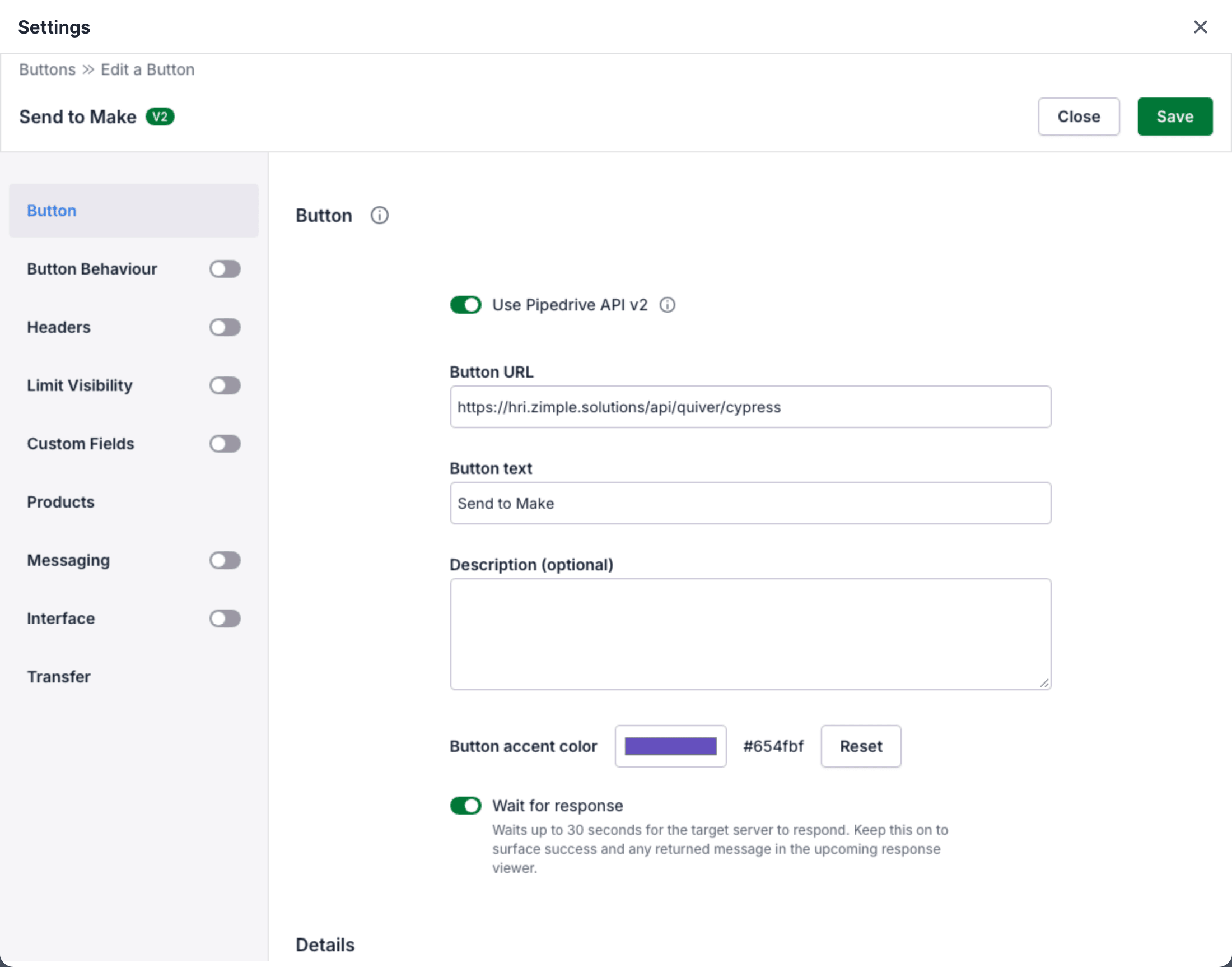
The Button section has these settings:
- Use Pipedrive API v2 sets the Pipedrive API version that the Button uses. See Migrate to API v2.
- Button URL is the URL that gets the data. It is required. It must be a valid URL with a maximum of 1500 characters.
- Button text is the label of the Button in the Panel or in the Floating window.
- Description (optional) is a text about the Button. The user sees it after a click on the info icon (i) at the right of the Button. The maximum is 500 characters.
- Button accent color is the color of the Button. The field at the right of the color shows the hex code. Click Reset to use the default color.
- Wait for response makes OneClick wait up to 30 seconds for the answer of your process. The Button then shows the result to the user. See The answer of your process.
HTML in the description
Section titled “HTML in the description”The description can contain the HTML tags <a>, <b>, <i>, <br> and <div>. A link can have the attributes
href, target, rel and style. The style of a link can set only color and font-size. OneClick removes all
other tags and attributes. When the description contains HTML, the editor shows a preview.
Test the Button
Section titled “Test the Button”- Click Save and close the Settings.
- Open a deal, a person or an organization in Pipedrive.
- Click the Button in the OneClick Panel.
- Make sure that your process got the request. For example, look at the history of the Make scenario or the Zap.
The data that the Button sends
Section titled “The data that the Button sends”OneClick sends the request with the method POST and the content type application/json. A press in the Panel of
a deal sends a body such as this:
{ "identifier": "25f51481-2e6a-4253-8714-cbd0088f7bae", "resource": "deal", "view": "details", "userId": "18136649", "companyId": "89342902", "selectedIds": "6115", "fields": null}| Key | Value |
|---|---|
identifier |
The ID of the Button. The Details of the Button show the same ID. |
resource |
The type of the record: deal, person or organization. |
view |
The Pipedrive view in which the user pressed the Button. |
userId |
The Pipedrive ID of the user who pressed the Button. |
companyId |
The Pipedrive ID of the company of the user. |
selectedIds |
The ID of the record. |
fields |
The values of the fields. The value is null when the press has no field values. When Custom Fields is off, the key can be missing. |
The body also contains the other parameters that Pipedrive gives to the OneClick Panel. Other settings add more keys:
- Custom Fields adds the field values in
fields. See Custom fields. - Products adds the deal products in
products. See Products. - Messaging and Interface add
event_id, the ID of the press.
A Floating window Button has no record. Its body has no resource, selectedIds and view, and it has the key
surface. See A Floating window Button gets no Pipedrive record.
The headers of the request
Section titled “The headers of the request”Each request has these HTTP headers:
| Header | Value |
|---|---|
Content-Type |
application/json |
X-oc-user-id |
The Pipedrive ID of the user who pressed the Button. |
X-oc-company-id |
The Pipedrive ID of the company of the user. |
X-oc-pipedrive-api-version |
The Pipedrive API version of the Button: v1 or v2. |
X-oc-event-id |
The ID of the press. Only a Button with Messaging or Interface sends it. |
To send your own headers, for example an API token, use the Headers section. See Headers.
The answer of your process
Section titled “The answer of your process”When Wait for response is off, OneClick sends the request and does not wait for the answer.
When Wait for response is on, OneClick waits up to 30 seconds:
- A status code from 200 to 299 is a success. The Button shows a green check mark for 2 seconds.
- Another status code, an error or no answer in 30 seconds is a failure. The Button shows a red exclamation mark. A click on it shows the message.
OneClick takes the message from the answer. The answer can be a text, or JSON with the key message, the key
error or the key error.message.
The Details of the Button
Section titled “The Details of the Button”After you save the Button, the Button section shows the Details:
- Identifier: the ID of the Button. The request sends it in
identifier. - Created by and Created at: the user who made the Button, and when.
- Modified by and Modified at: the user who changed the Button last, and when.
The sections of the editor
Section titled “The sections of the editor”The editor of a Workflow button has these sections:
| Section | What you set |
|---|---|
| Button | The URL, the text, the description, the color and the API version. |
| Button Behaviour | A cooldown after a press and a confirmation view. See Button behavior. |
| Headers | Your own HTTP headers for the request. See Headers. |
| Limit Visibility | The records, pipelines, stages, users and groups that see the Button. See Limit visibility. |
| Custom Fields | The fields that the user sees and fills in before OneClick sends the data. See Custom fields and Advanced validation. |
| Products | The deal products in the request. See Products. |
| Messaging | The messages that your process sends back to the user. See Messaging. |
| Interface | The size of a window that the Button opens. The section shows only when your company can use it. |
| Transfer | A copy of the Button for the OneClick of another Pipedrive company. See Transfer a Button. The section shows only for a saved Button. |
A section with a switch in the menu is on only when the switch is on. A Floating window Button has no Products section and no Interface section.