Messaging
This page is for admins who make Buttons.
The Messaging section lets your process send messages back to the user who pressed a Workflow button. A message can tell the user that the process started, completed or stopped with an error. You can send more than one message for one press, for example one message for each step of the process.
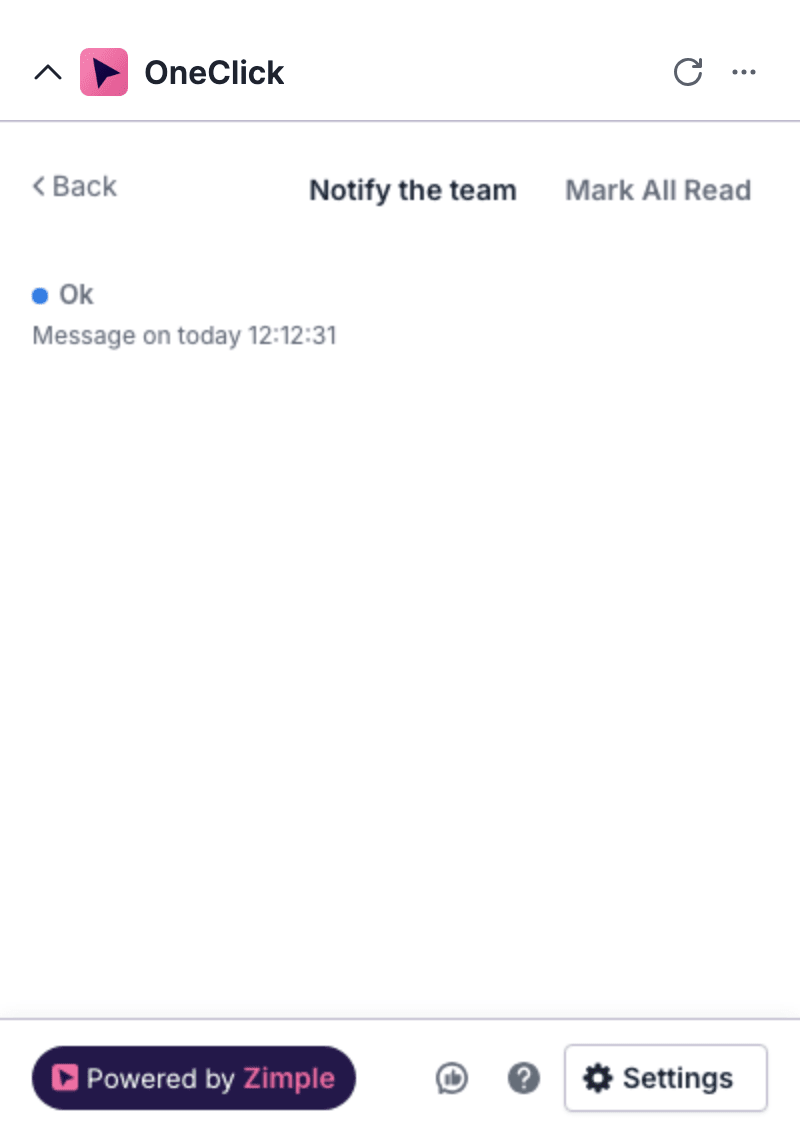
The user reads the messages in the Panel. See Read messages.
How messaging works
Section titled “How messaging works”- The user presses the Button. OneClick makes an ID for the press, the event ID.
- OneClick sends the request to the URL of the Button. The request contains the event ID in the key
event_idand in the headerX-oc-event-id. - OneClick shows the answer of your process as a message. This is the HTTP answer message.
- Your process can send more messages to the messaging end-point of OneClick. These are custom messages. Each custom message contains the event ID.
- OneClick shows the messages of the press to the user.
You can use HTTP answer messages and custom messages together.
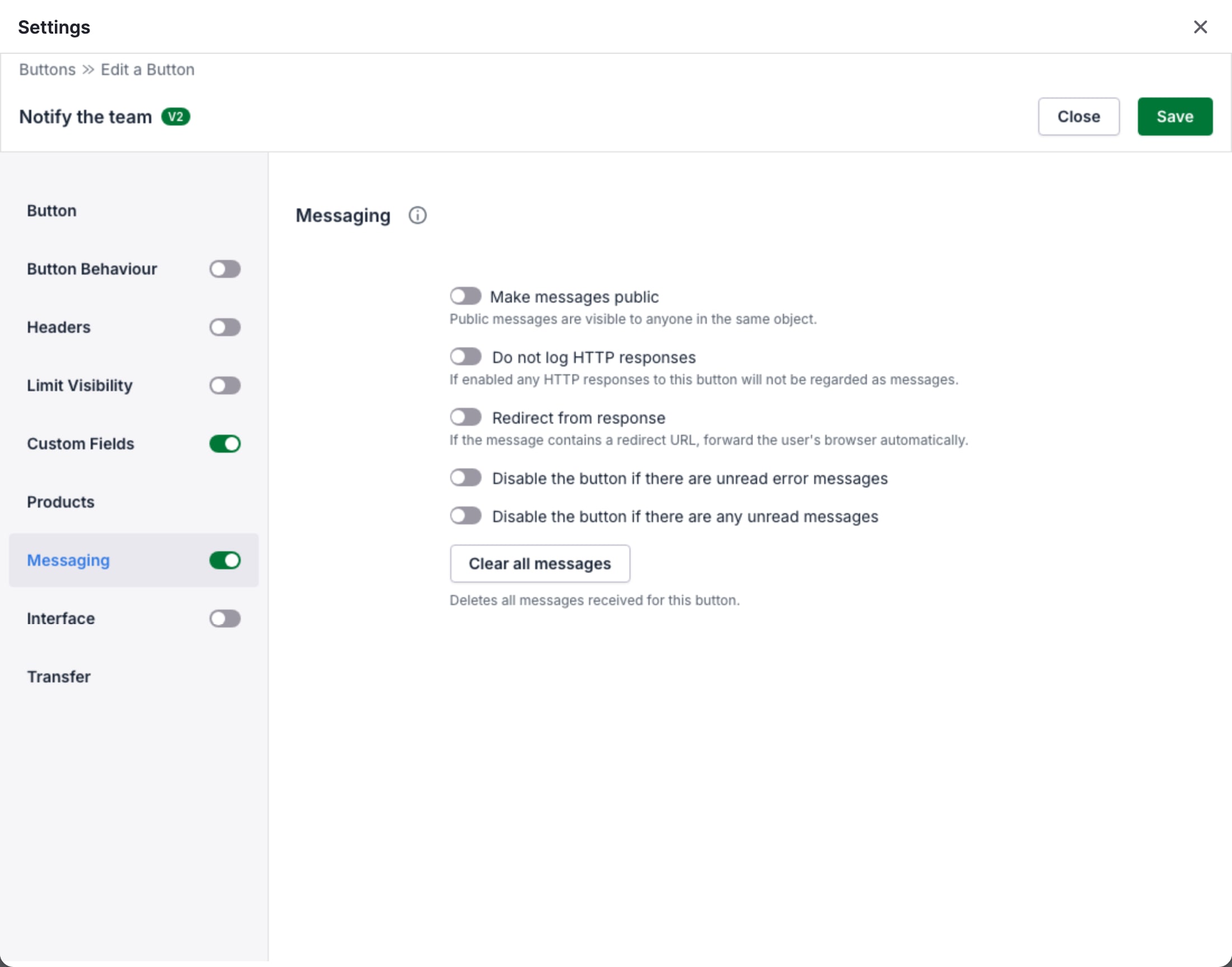
Turn on messaging
Section titled “Turn on messaging”- Open the Button in the Button editor.
- Turn on the switch at the right of Messaging in the menu.
- Click Messaging. The section shows the options. See Messaging options.
- Click Save.
The options are available only when the switch of the section is on. A Link button and an Interface button have no Messaging section.
After you turn on messaging, press the Button one time. The request then contains event_id, and your process or
your automation tool can find the key.
Message types
Section titled “Message types”Each message has one of these types: info, success, warning or error. The type sets the color of the message
in the Panel. A message of the type error can also block the Button. See
Disable the button if there are unread error messages.
HTTP answer messages
Section titled “HTTP answer messages”When messaging is on, OneClick waits up to 10 seconds for the answer of your process. During the wait, the message of the press is Waiting. OneClick then replaces it with a message from the answer.
A status code from 200 to 299 is a success. The table shows the message for each type of answer:
| The answer | Status 200 to 299 | Other status |
|---|---|---|
| A text | The text, with the type info. |
The text, with the type error. |
JSON with message and message_type |
The message, with the message_type. |
The message, with the message_type. |
| No body | Success, with the type success. |
Error, with the type error. |
If the JSON answer has no message_type, the type is info, also for an error status. Thus, add
"message_type": "error" to a JSON answer that tells about an error.
If the JSON answer has no message, the message is empty, with the type info. OneClick does not show Success
for this answer. Thus, always add message to a JSON answer.
A JSON answer can look like this:
{ "message_type": "success", "message": "Invoice created"}If your process does not answer in 10 seconds, the message is Request time out, with the type error.
A status code that is not from 200 to 299, or no answer in 10 seconds, also makes the press fail. OneClick logs the press as a failure. If Wait for response is also on, the Button shows a red exclamation mark with the error, for example Request failed with status code 500.
For a press with a success status, OneClick does not use the Wait for response setting of the Button.
Some automation tools, for example Zapier, cannot send their own HTTP answer. For these tools, turn on Do not log HTTP responses and send custom messages.
Custom messages
Section titled “Custom messages”A custom message is an HTTP request that your process sends to OneClick after the press. Send the request with the
method POST and a JSON body to the messaging end-point:
https://app.theoneclick.io/api/trigger-messageThe body of a custom message:
{ "event_id": "d3cc3758-41d3-4eba-bb80-894734f5fa20", "message": "Invoice created", "message_type": "success"}| Key | Value |
|---|---|
event_id |
The event ID from the request of the press. Copy the value of event_id exactly. |
message |
The text of the message. The maximum is 2000 characters. |
message_type |
info, success, warning or error. If you leave it out, the type is info. |
redirect_url |
Optional. A URL that the browser of the user opens. See Redirect from response. |
The body must contain message, or redirect_url with Redirect from response on.
Rules for custom messages
Section titled “Rules for custom messages”- Send the custom messages within 10 minutes after the press. After this time, the end-point does not accept a message for the press.
- You can send a maximum of 10 custom messages for one press.
- The end-point accepts a maximum of 300 requests in a minute from one IP address. Then it answers with the status
429.
The answer of the end-point
Section titled “The answer of the end-point”When the end-point accepts the message, it answers with the status 200:
{ "error": false, "message": "Ok"}When it does not accept the message, it answers with the status 400 and a reason in message:
message |
Cause |
|---|---|
Not found or the event window is expired |
The event ID is not correct, or the press was more than 10 minutes ago. |
The maximum number of messages per event is 10 |
The press has 10 custom messages. |
The message or redirect url is required |
The body has no message and no redirect_url. |
The message is required when the redirect from responses is not selected |
The body has only redirect_url, and Redirect from response is off. |
Format a message with HTML
Section titled “Format a message with HTML”A message can contain these HTML tags: <a>, <b>, <i>, <br> and <div>. OneClick removes all other tags
from the message and keeps their text. The maximum length of 2000 characters includes the tags.
Give a link <a> its URL in href. Its style attribute can set only color and font-size. OneClick opens a
link in a message in a new browser tab.
{ "event_id": "d3cc3758-41d3-4eba-bb80-894734f5fa20", "message": "<b>Invoice created.</b><br><a href=\"https://example.com/invoices/1001\">Open the invoice</a>", "message_type": "success"}Messaging options
Section titled “Messaging options”Make messages public
Section titled “Make messages public”When this option is off, only the user who pressed the Button sees the messages.
When this option is on, all users see the messages. A message shows only on the record where the user pressed the Button. For example, a message of a press on deal A shows on deal A, but not on deal B. On a Floating window Button, all users of the Button see the messages.
A message is unread only for the user who pressed the Button. Other users see it as read.
Do not log HTTP responses
Section titled “Do not log HTTP responses”When this option is on, the answer of your process does not make a message. Only custom messages show to the user.
Redirect from response
Section titled “Redirect from response”When this option is on, a message can open a URL in the browser of the user. Add the URL to the key redirect_url
of a custom message or of the JSON answer of your process:
{ "event_id": "d3cc3758-41d3-4eba-bb80-894734f5fa20", "message": "The filter is ready", "message_type": "success", "redirect_url": "https://your-company.pipedrive.com/organizations/list/filter/37"}OneClick opens the URL in a new browser tab for the user who pressed the Button. The Panel opens the URL only while the Panel is open, and only within 10 minutes after the press. OneClick opens each URL one time.
A message can have only redirect_url and no message. The message then shows the text Link with the host name
of the URL, and opened.
Disable the button if there are unread error messages
Section titled “Disable the button if there are unread error messages”When this option is on, the user cannot press the Button while it has an unread message of the type error. Use it
to stop a second press that gives the same error again. The user reads the error message, and can then press the
Button again.
When the messages are public, this option blocks only the user who pressed the Button.
Disable the button if there are any unread messages
Section titled “Disable the button if there are any unread messages”When this option is on, the user cannot press the Button while it has an unread message. The user must read all messages first.
When the messages are public, this option blocks only the user who pressed the Button.
Delete the messages
Section titled “Delete the messages”- Open the Button in the Button editor.
- Click Messaging in the menu.
- Click Clear all messages.
- Click Yes, delete. OneClick deletes all messages of the Button.
You cannot undo the delete. The Panel can show the deleted messages for up to 10 minutes. Clear all messages shows only for a saved Button.
Send messages from an automation tool
Section titled “Send messages from an automation tool”An automation tool sends a custom message with an HTTP POST request, for example a webhook step. Use the value of
event_id from the trigger of the automation. For Zapier, turn on Do not log HTTP responses.