Link button
This page is for admins who make Buttons.
A Link button opens a URL in the browser of the user. You build the URL from text and from Pipedrive fields. When a user clicks the Button, OneClick puts the current field values of the record into the URL and opens it. For example, a Link button can open a Google search for the name of the organization, or the page of the customer in your invoicing tool. For the view of the user, see Press a Button.
A Link button sends no data to a server. It only opens a URL. To send the data of a record to a process, use a Workflow button.
For guides with Google Forms, Xero, a business registry and Node.js, see Using OneClick with.
How a Link button opens a URL
Section titled “How a Link button opens a URL”- A Pipedrive user clicks the Link button in the Panel of a deal, a person or an organization.
- OneClick reads the current values of the fields in the URL.
- OneClick puts the values into the URL and opens it in a new window or in a pop-up window.
OneClick reads the field values at the time of the click. The URL always contains the latest data, but the window can open after a short delay.
Make a Link button
Section titled “Make a Link button”- Open a deal, a person or an organization in Pipedrive.
- Click Settings at the bottom of the OneClick Panel. The Settings open on the Buttons tab.
- Click the Panel tab or the Floating window tab.
- Click Create new.
- Click Link button. The Button editor opens on the Button section.
- Type the Button text. The user sees this text on the Button.
- Click Dynamic URL in the menu and build the URL. See Dynamic URL.
- Click Save.
The Button editor of a Link button has the sections Button, Dynamic URL, Window, Signed link, Limit visibility and Transfer. The Button section has Use Pipedrive API v2, Button text, Description (optional) and Button accent color. These settings work as in a Workflow button. A Link button has no Button URL: the Dynamic URL section makes the URL.
Dynamic URL
Section titled “Dynamic URL”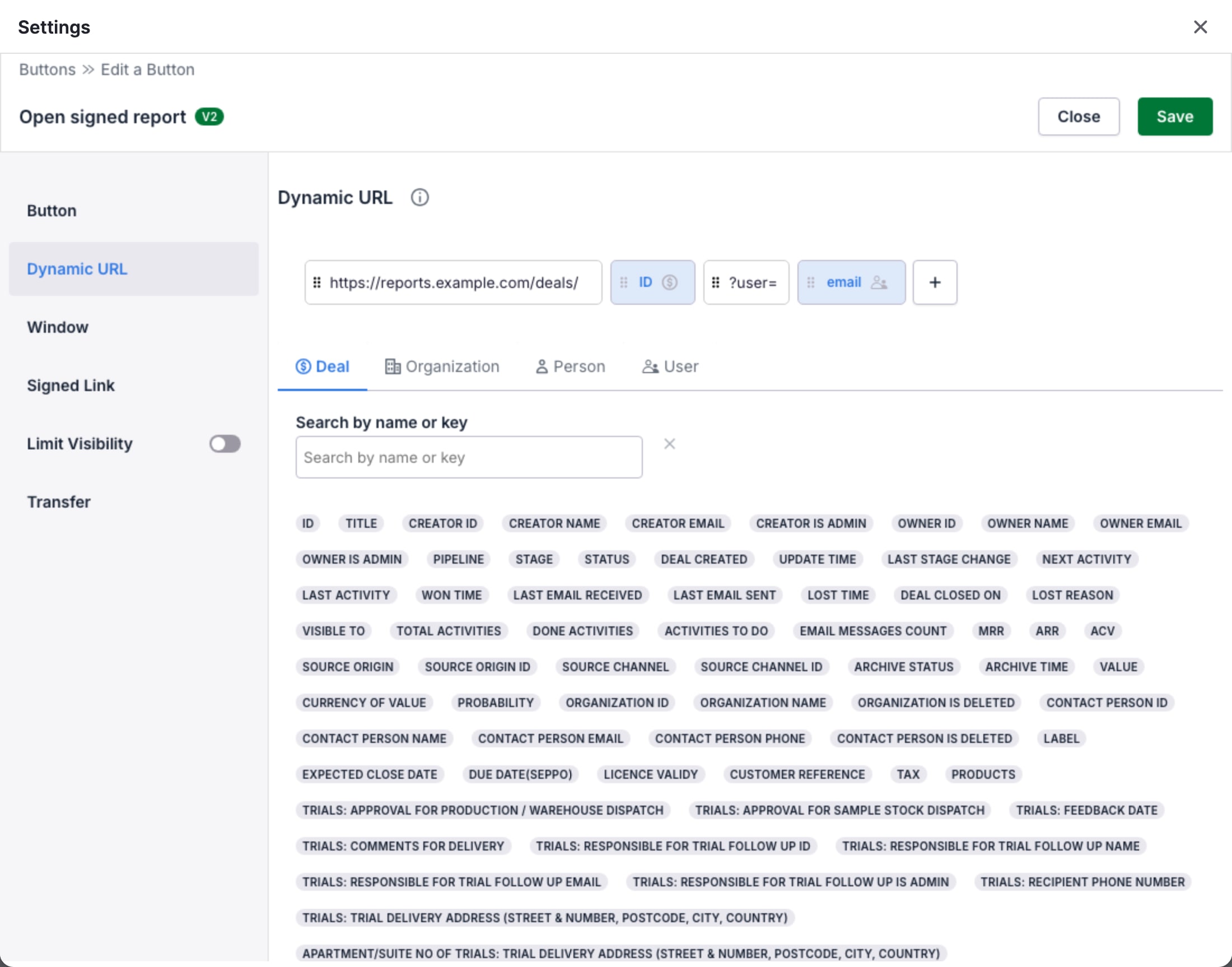
The Dynamic URL section builds the URL from elements in a row. OneClick joins the elements from left to right. There are two types of element:
- A text element contains fixed text, for example
https://www.google.com/search?q=. - A field element contains a Pipedrive field, for example the name of the organization. When the user clicks the Button, OneClick puts the value of the field in place of the element.
A new Link button starts with one text element that contains https://.
Copy a sample URL from the target page first. Then replace the parts that change with field elements. For example, a Google search for the organization has these two elements:
| Element | Contents |
|---|---|
| Text | https://www.google.com/search?q= |
| Field | The Name field of the organization |
Type the URL without URL encoding
Section titled “Type the URL without URL encoding”Type the URL as plain text, without URL encoding. OneClick encodes the full URL when the user clicks the Button. For example, type a space as a space:
https://www.google.com/search?q=test valueDo not type %20 for the space. OneClick encodes the % again, and the URL then contains %2520:
https://www.google.com/search?q=test%2520valueIf you paste an encoded URL, click URL Decode in the URL toolbox. OneClick then decodes the text of the element.
URL toolbox
Section titled “URL toolbox”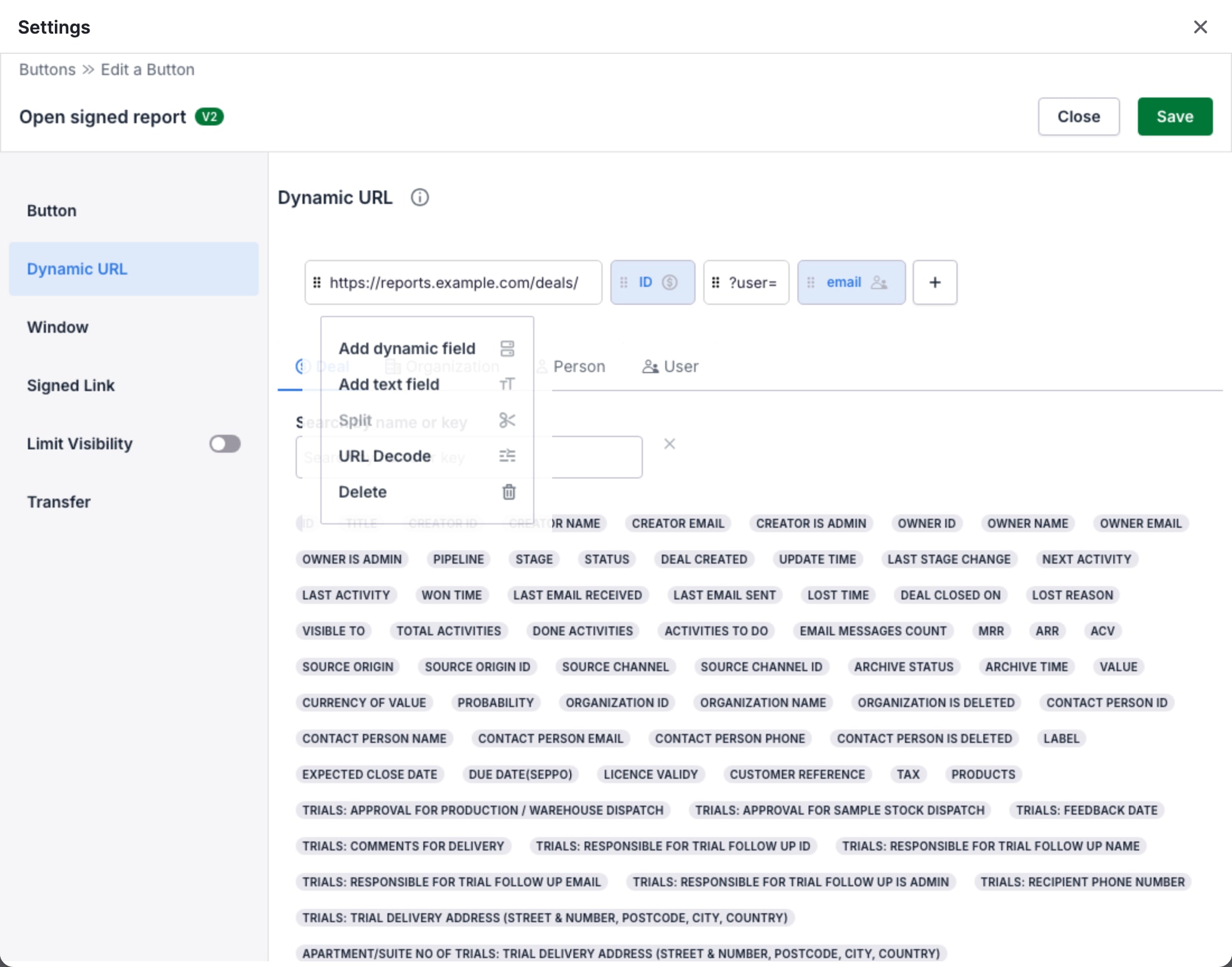
Put the pointer on an element to show the URL toolbox. The toolbox has these actions:
- Add dynamic field adds a field element at the right of the current element. Then click a field in the field picker. See Field picker.
- Add text field adds an empty text element at the right of the current element.
- Split divides a text element into two elements at the position of the cursor. Click in the text first.
- URL Decode decodes the encoded characters in a text element, for example
%20to a space. - Delete removes the element. When the URL has only one element, you cannot remove it.
Split and URL Decode are only on text elements. Click the + button at the right of the row to show the actions Add dynamic field and Add text field. They add the element at the end of the URL.
To change the order of the elements, drag an element by its handle (⠿) to a different position.
Field picker
Section titled “Field picker”The field picker is below the row of elements. It has a tab for each record type: Deal, Organization, Person and User. Each tab shows the fields of that type as labels.
- Type in Search by name or key to find a field.
- Put the pointer on a field to see its key and its type.
- Click a field to add it to the URL. If you clicked Add dynamic field first, the field goes to that position. If not, the field goes to the end of the URL.
Some fields contain more than one value. For these fields, a Choose field list opens. Click the value that the URL uses:
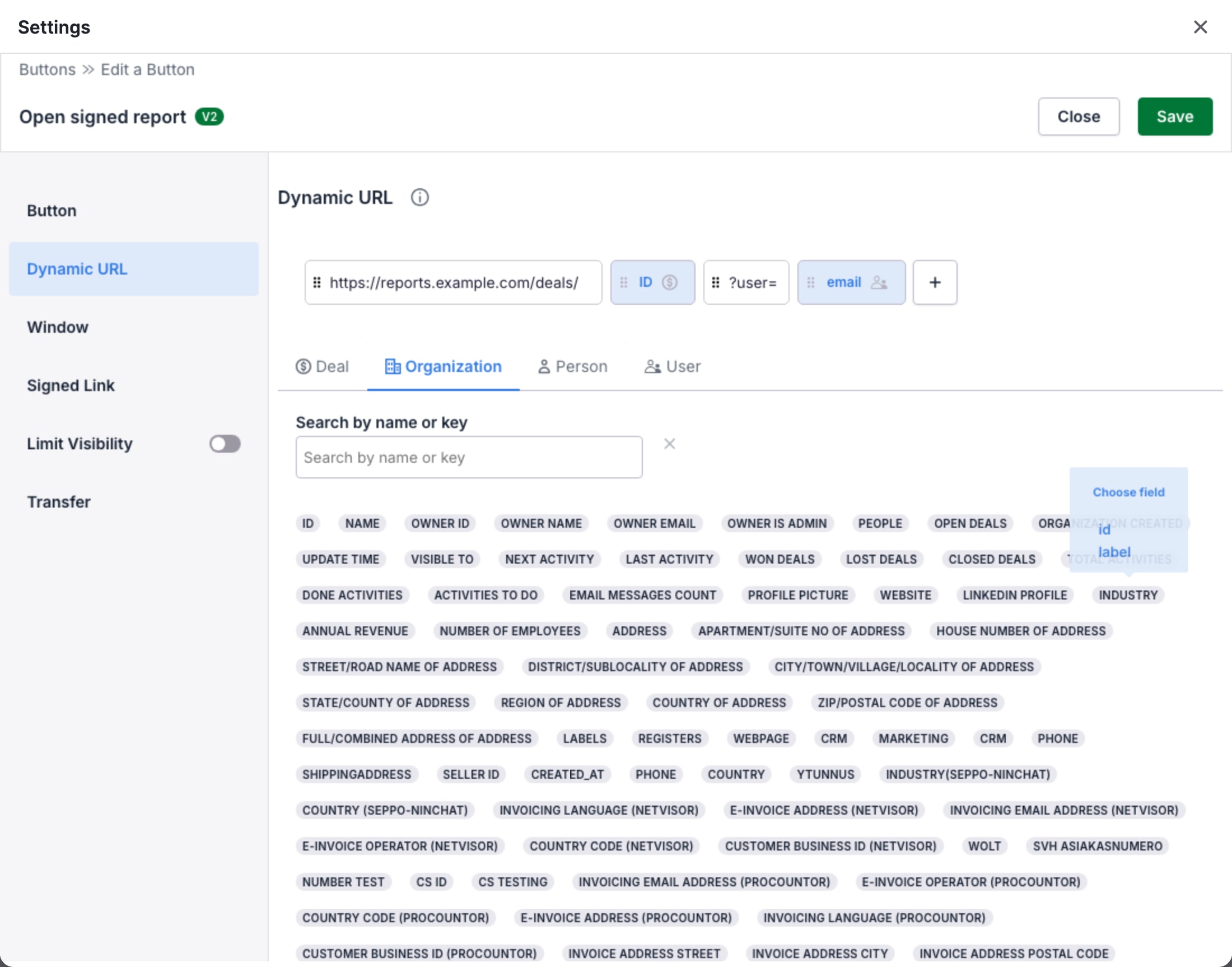
| Field type | Values in Choose field |
|---|---|
| Single option, multiple options | id or label |
| Organization | name, people_count, owner_id, address, cc_email, owner_name, value |
| Person | name, email, phone, owner_id, value |
| User | id, name, email, has_pic, pic_hash, owner_name, value |
The User tab has the fields of the Pipedrive user who clicks the Button, for example the email of that user.
Fields and the record of the click
Section titled “Fields and the record of the click”A Link button reads its fields from the record on which the user clicks it:
- On a deal, the URL can use the fields of the deal, its organization, its contact person and the user.
- On an organization, the URL can use the fields of the organization and the user.
- On a person, the URL can use the fields of the person and the user.
- In the Floating window, the Button belongs to no record. The field picker then shows only the User tab.
Every field in the URL must have a value. If a field is empty, or the record has no such field, OneClick does not open the URL. The Panel shows an error in place of the Button. Use Limit visibility to show the Button only on the record types that have its fields.
Window
Section titled “Window”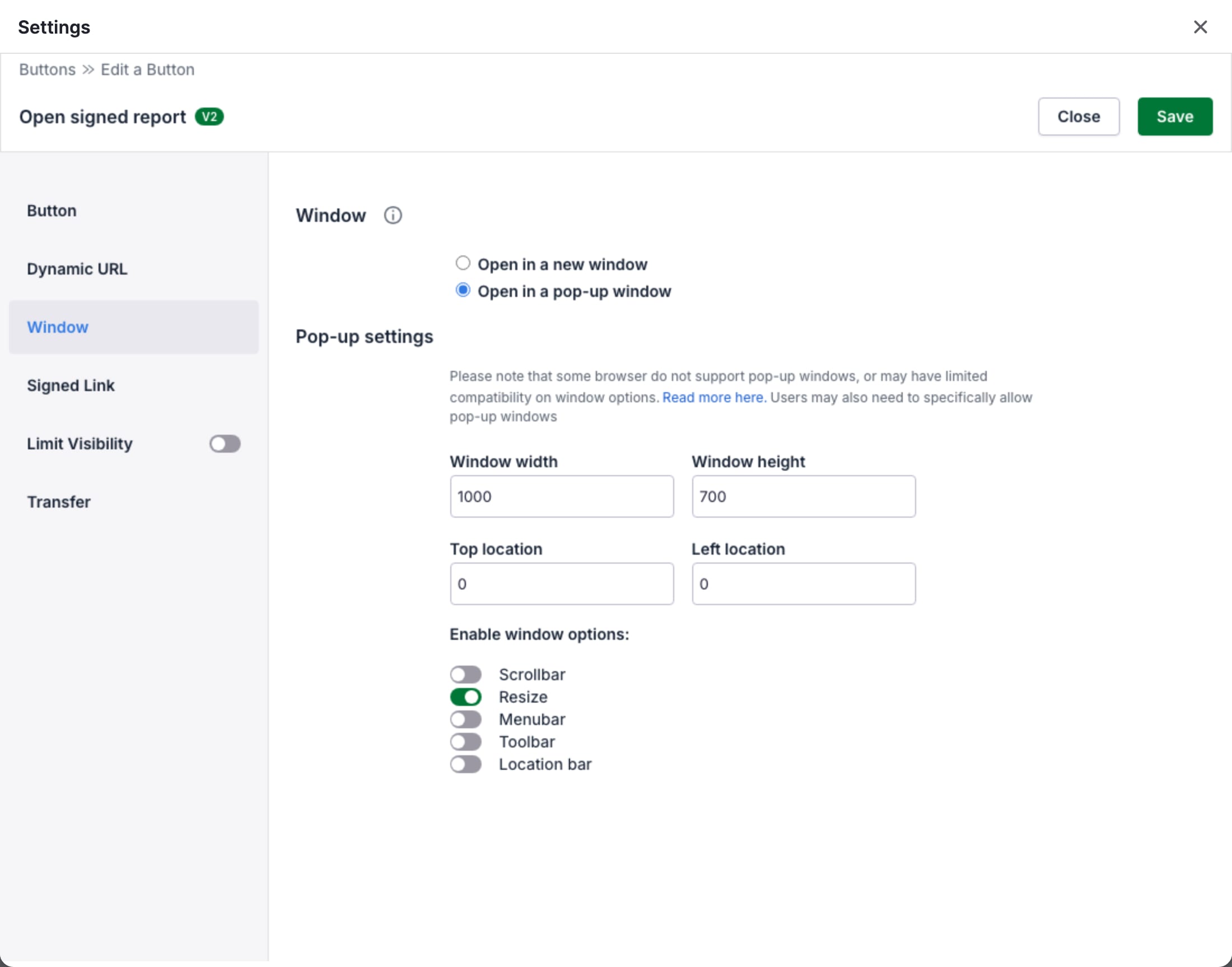
The Window section sets where the URL opens:
- Open in a new window opens the URL in a new browser tab or window.
- Open in a pop-up window opens the URL in a pop-up window with the size and position that you set.
Pop-up settings
Section titled “Pop-up settings”The Pop-up settings are available only when you select Open in a pop-up window. All values are in pixels.
- Window width and Window height set the size of the pop-up window. Use 100 pixels or more.
- Top location and Left location set the position of the pop-up window from the top left corner of the screen.
Under Enable window options, turn on the parts of the browser window that the pop-up shows: Scrollbar, Resize, Menubar, Toolbar and Location bar.
The pop-up window has the Button text as its name. A second click on the same Button opens the URL in the same pop-up window.
Browser limits for pop-up windows
Section titled “Browser limits for pop-up windows”The browser decides how it opens a pop-up window. OneClick cannot change this.
- Some browsers open a pop-up window in a new tab, or do not support pop-up windows.
- Some browsers block pop-up windows. The user must then allow pop-up windows for Pipedrive.
- Some browsers ignore some window options, for example a hidden location bar or hidden scrollbars.
For the pop-up settings of your browser, see the help of
Chrome,
Safari,
Firefox or
Edge.
For the window options, see the windowFeatures parameter of
window.open().
Signed link
Section titled “Signed link”A Link button can put a short-lived signed token in the URL. The target page can then verify that the click came from OneClick and from which Pipedrive user. See Signed link.
Test the Button
Section titled “Test the Button”- Click Save and close the Settings.
- Open a deal, a person or an organization in Pipedrive.
- Click the Link button in the OneClick Panel. The URL opens in a new window or in a pop-up window.
- Make sure that the URL contains the correct field values.