Use Buttons
This page is for Pipedrive users who press Buttons.
Your admin makes the Buttons. For questions about the process that a Button starts, speak to your admin.
The Panel
Section titled “The Panel”The Panel is the OneClick area in the sidebar of a Pipedrive deal, person or organization. A Button in the Panel belongs to that record. When you press it, OneClick uses the data of that record.
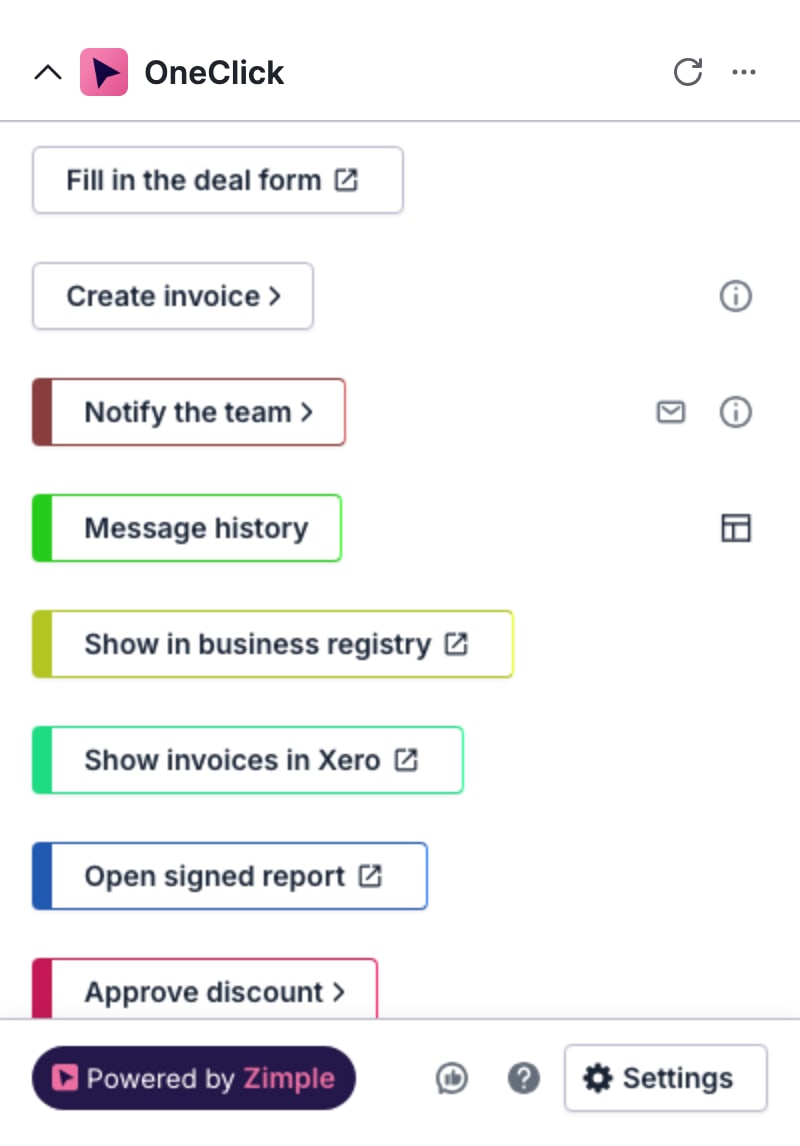
If the Panel shows Hover here to reveal buttons, your admin turned on Reveal on hover. Move the mouse pointer over the Panel. OneClick then loads the Buttons. This setting decreases the number of Pipedrive API calls.
Button groups
Section titled “Button groups”Your admin can put Buttons in groups. A group has a header with the group name and the number of Buttons.
- Click the group header to open or close the group.
- To keep a group open, move the mouse pointer over the group header and click the pin icon. The pin applies only to your browser.
The Floating window
Section titled “The Floating window”The Floating window floats over Pipedrive. It stays open when you move to another page in Pipedrive. A Button in the Floating window belongs to no record, so it does not use the data of a deal, person or organization.
To open the Floating window, click the OneClick icon in the top bar of Pipedrive. To close it, click the X icon.
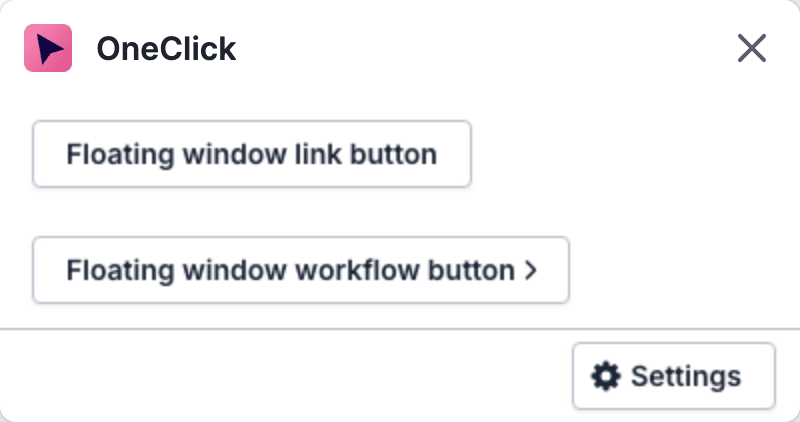
The Panel and the Floating window have different Buttons. You cannot press a Panel Button in the Floating window.
The icons on a Button
Section titled “The icons on a Button”| Icon | Meaning |
|---|---|
| Arrow (>) after the Button name | The Button has fields. See Fill in the fields. |
| Open-in-new icon after the Button name | In the Panel, this icon marks a Link button. It opens a page in a new tab or a pop-up window. |
| Info icon (i) at the right | The Button has a description. See Press a Button. |
| Envelope icon at the right | The Button has messages. See Read messages. |
| Layout icon at the right | Only admins see this icon on an Interface button. It opens Interface Builder. |