Fill in a Google Form
This page is for admins who make Buttons.
In this guide, you make a Link button that opens a Google Form. The form already contains the name of the organization, the value and the expected close date of the deal. The user only checks the answers and sends the form.
You need a Google Form with three questions: a short answer for the customer name, a short answer for the deal value and a date for the expected close date.
Get a pre-filled link of the form
Section titled “Get a pre-filled link of the form”Google Forms can make a link that fills in the answers. The link has a parameter for each question.
- Open the form in Google Forms.
- Click the menu with three dots and click Get pre-filled link.
- Type a sample answer for each question. Use a single word with no spaces, for example
Test. - Click Get link.
- Click Copy link.
The link looks like this:
https://docs.google.com/forms/d/e/<form ID>/viewform?usp=pp_url&entry.1980661752=Test&entry.1793490643=2026-11-30&entry.1784899242=100Each entry.<number>= parameter is one question. The text after = is your sample answer. In the next steps, you
replace each sample answer with a field of the deal.
Make the Link button
Section titled “Make the Link button”- Open a deal in Pipedrive.
- Make a Link button and type the Button text, for example
Fill in the deal form. See Make a Link button. - Click Dynamic URL in the menu.
- Paste the link into the first text element. If the link contains
%codes, click URL Decode in the URL toolbox. See Type the URL without URL encoding.
Do these steps for each entry.<number>= parameter, from left to right:
- Click in the text immediately after
=. - Click Split in the URL toolbox. The text divides into two elements.
- Delete the sample answer at the start of the right element.
- Put the pointer on the left element and click Add dynamic field. A field element shows at the right of it.
- On the Deal tab of the field picker, click the field for this question. The field goes into the field element.
Use these fields of the Deal tab:
| Question | Field |
|---|---|
| Customer name | Organization name |
| Deal value | Value |
| Expected close date | Expected close date |
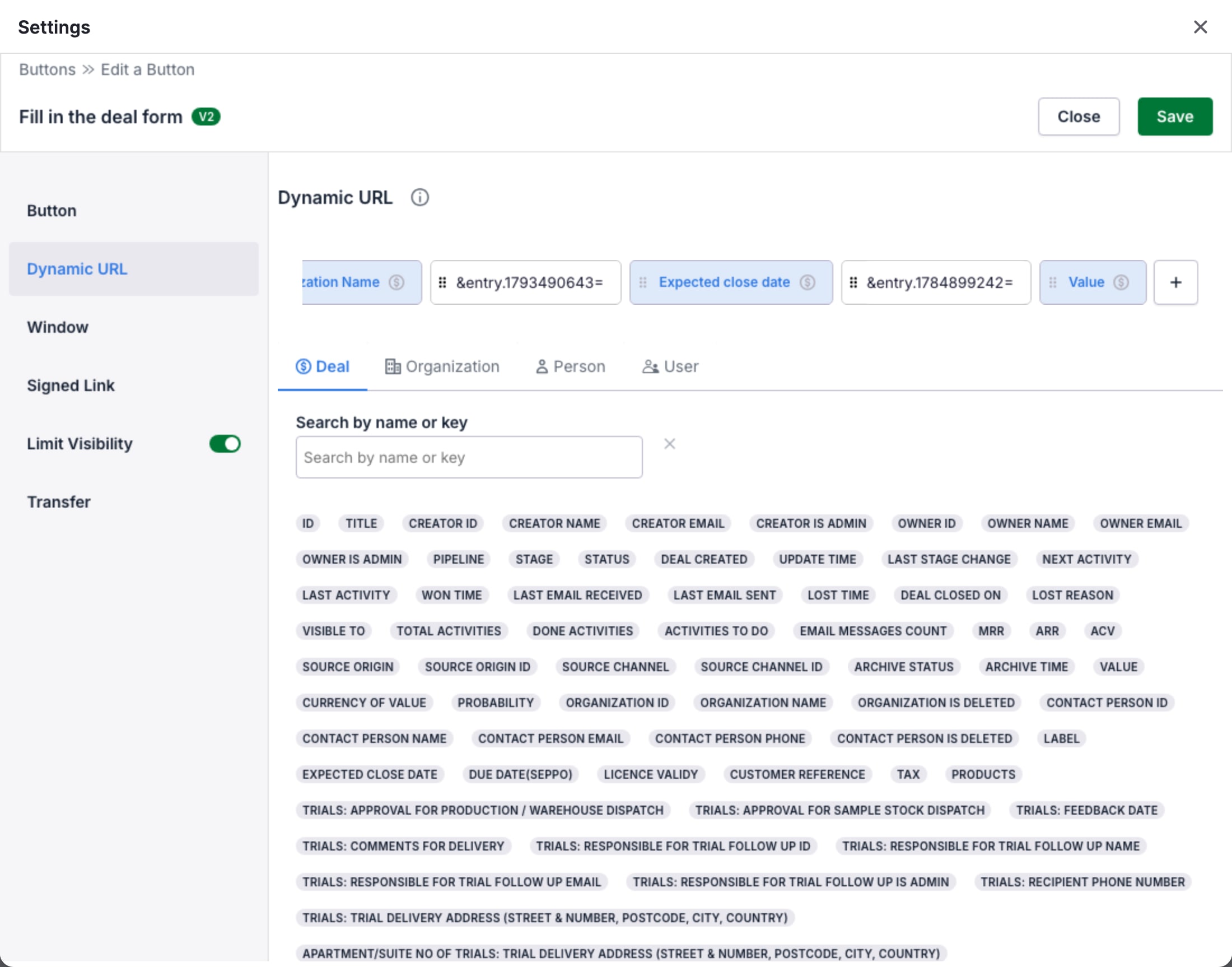
For the URL toolbox and the field picker, see URL toolbox and Field picker.
Show the Button only on deals
Section titled “Show the Button only on deals”The URL uses the fields of a deal. On a person or an organization, the URL has no value for these fields.
- Turn on the switch of Limit Visibility and click Limit Visibility.
- In Show only in scopes, select deal.
- Click Save.
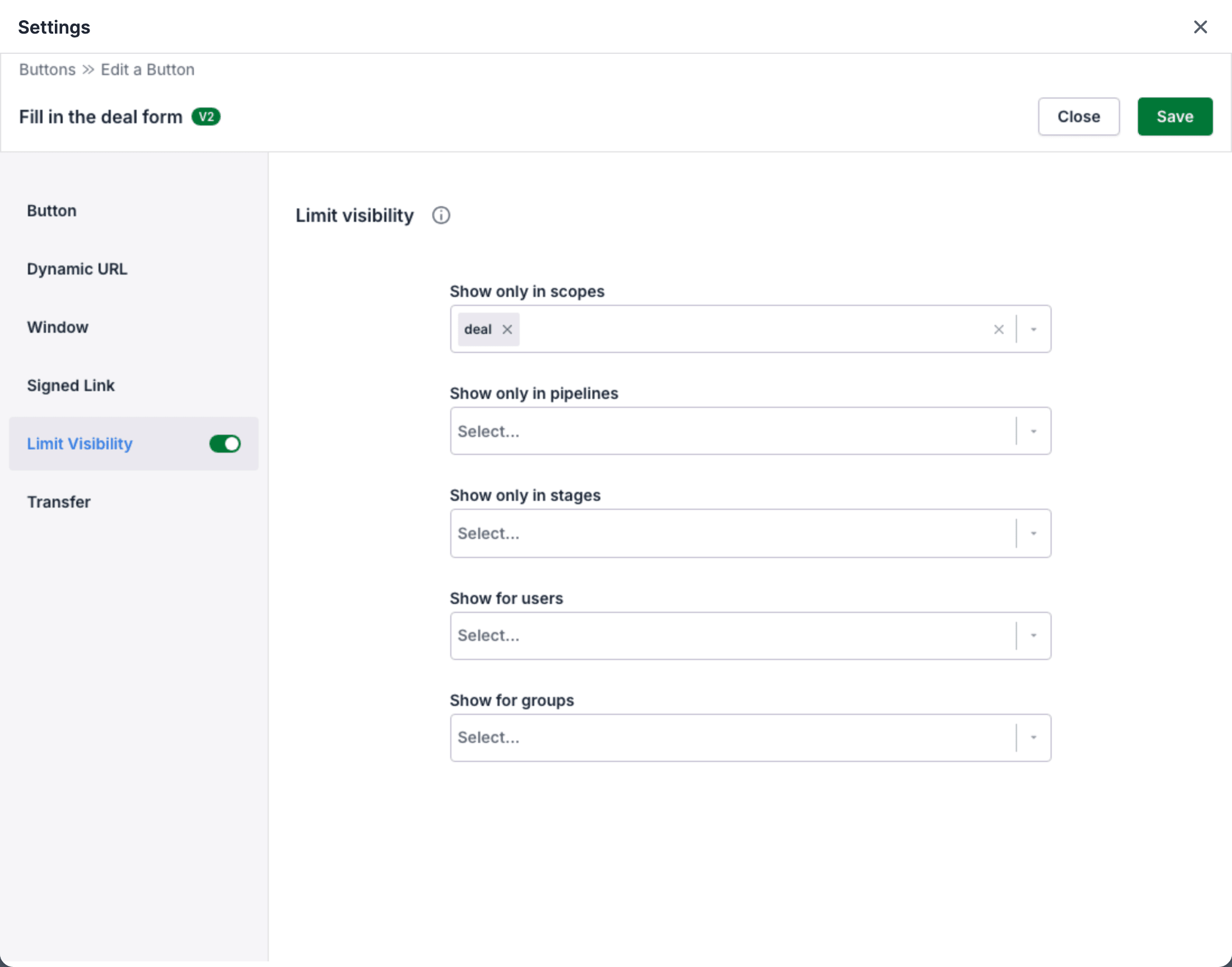
See Limit visibility.
Test the Button
Section titled “Test the Button”- Open a deal that has an organization, a value and an expected close date.
- Click the Button in the OneClick Panel. The Google Form opens.
- Make sure that the form shows the name of the organization, the value and the expected close date of the deal.
Every field in the URL must have a value. If the deal has no organization, no value or no expected close date, OneClick does not open the form. The Panel shows an error in place of the Button. See Fields and the record of the click.
The pre-filled link gives a date answer in the format YYYY-MM-DD, for example 2026-11-30. The
Expected close date field has the same format. Use a date field with this format for a date question.